

Why there is no Microsoft Store on Windows Server
Windows Server is built for server roles, and the consumer Microsoft Store app is not part of it. The underlying pieces are
there, though: Windows Server 2025 with Desktop Experience runs MSIX apps and includes the Windows Package Manager
(winget) with the msstore source — the Microsoft Store catalog itself. So the Store app is missing, but
the Store is reachable.
We tested every step below on a clean Windows Server 2025 Standard 24H2 virtual machine, signed in as the built-in Administrator, using PostMount as the example app. The same commands work for any app from the Microsoft Store — only its ID changes.
Check winget and the msstore source
Open PowerShell as administrator and run:
winget --version
winget source list
On Windows Server 2025 winget is already installed (we had version 1.29), and the list shows the msstore source.
Windows Server 2022 and 2019 don’t include winget — install it first by following
Microsoft’s instructions.
Server Core has no desktop, so apps with a window need the Desktop Experience installation.
Find the app’s Store ID
Every Store app has a 12-character ID. It is the last part of the app’s address on
apps.microsoft.com
(…/detail/9PN0511DJX9K for PostMount), or the Id column of winget search "app name" --source msstore.
Check that the server sees the app:
winget show --id 9PN0511DJX9K --source msstore --accept-source-agreements
The first time, winget shows the Microsoft Store terms; --accept-source-agreements accepts them.
Version: Unknown is normal for Store apps — winget doesn’t know the version until the app is installed.
Installer Type: msstore means a real Store package (MSIX); listings marked exe or msi run the
publisher’s own installer instead.
Install the app
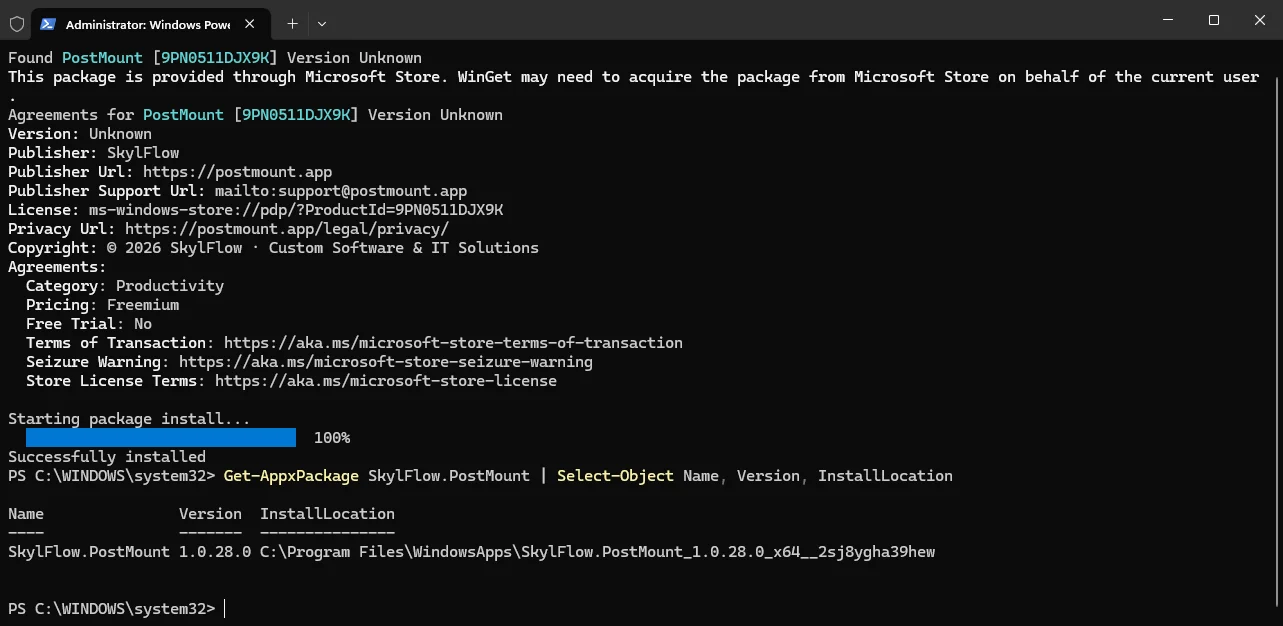
winget install --id 9PN0511DJX9K --source msstore --exact --accept-package-agreements --accept-source-agreements
Get-AppxPackage SkylFlow.PostMount | Select-Object Name, Version, InstallLocation
winget gets the package from the Microsoft Store on behalf of the current user and installs it — no Microsoft account is needed
for free apps. Get-AppxPackage confirms the installed version: in our test, PostMount 1.0.28.0 in
C:\Program Files\WindowsApps, the same version the Store offers on Windows 11.
Store apps are installed for the user who runs winget. Other users of the server get them when they run the same command — or, for a Windows service such as PostMount’s, it doesn’t matter: the service runs for everyone.
First run
The app appears in the Start menu as usual. PostMount opened and signed in to Microsoft 365 under the built-in Administrator account without any extra steps. Some older apps built for the Store’s sandbox (UWP) refuse to start under the built-in Administrator; if that happens, use another administrator account.
Keep Store apps updated on Windows Server
On Windows 11 the Microsoft Store app updates its apps by itself. On Windows Server there is no Store app, so nothing updates them — until you schedule it. winget recognizes the installed app and can update it:
winget upgrade --id 9PN0511DJX9K --source msstore --accept-source-agreements“No available upgrade found” means the newest version is already installed. To run it automatically, create a scheduled task. It runs daily at 3:00 as your account, even when nobody is signed in, without storing your password (S4U logon):
$cmd = 'winget upgrade --id 9PN0511DJX9K --source msstore --exact --silent --accept-package-agreements --accept-source-agreements --disable-interactivity *> "$env:ProgramData\PostMount-update.log"; if ($LASTEXITCODE -eq -1978335189) { exit 0 } else { exit $LASTEXITCODE }'
$action    = New-ScheduledTaskAction -Execute 'powershell.exe' -Argument "-NoProfile -WindowStyle Hidden -Command $cmd"
$trigger   = New-ScheduledTaskTrigger -Daily -At 3am
$principal = New-ScheduledTaskPrincipal -UserId "$env:USERDOMAIN\$env:USERNAME" -LogonType S4U -RunLevel Highest
Register-ScheduledTask -TaskName 'PostMount Update' -Action $action -Trigger $trigger -Principal $principal
Run it once and check the result:
Start-ScheduledTask -TaskName 'PostMount Update'; Start-Sleep 30
Get-ScheduledTaskInfo -TaskName 'PostMount Update' | Select-Object LastRunTime, LastTaskResult
Get-Content "$env:ProgramData\PostMount-update.log"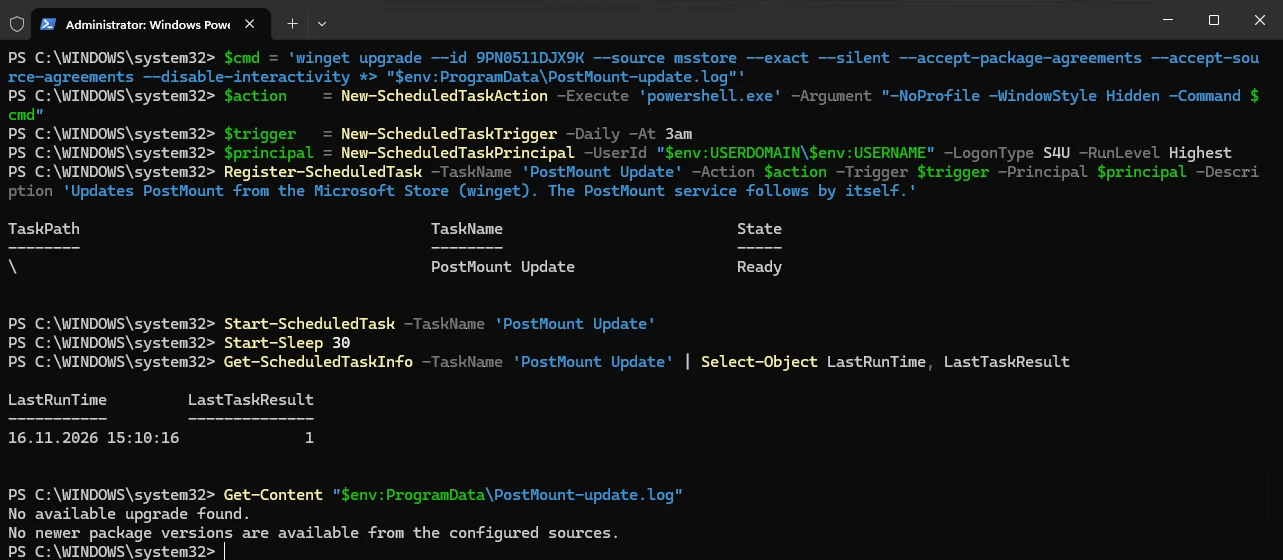
LastTaskResult 0 means it worked. The last part of the command turns winget’s “no update available”
code (-1978335189, 0x8A15002B) into success, so Task Scheduler doesn’t report a failure on days without updates.
For another app, replace the ID and the task name. The task can’t run as SYSTEM: winget installs Store apps only on behalf of a user.
Example: PostMount as a service on Windows Server
On a server, PostMount usually serves others — scanners, an ERP system, mail apps on the network — so it should run as a Windows service that starts before anyone signs in. After installing the app from the Store, add the service with one script:
Invoke-WebRequest https://postmount.app/service/Install-PostMountService.ps1 -OutFile "$env:TEMP\Install-PostMountService.ps1"
powershell -ExecutionPolicy Bypass -File "$env:TEMP\Install-PostMountService.ps1"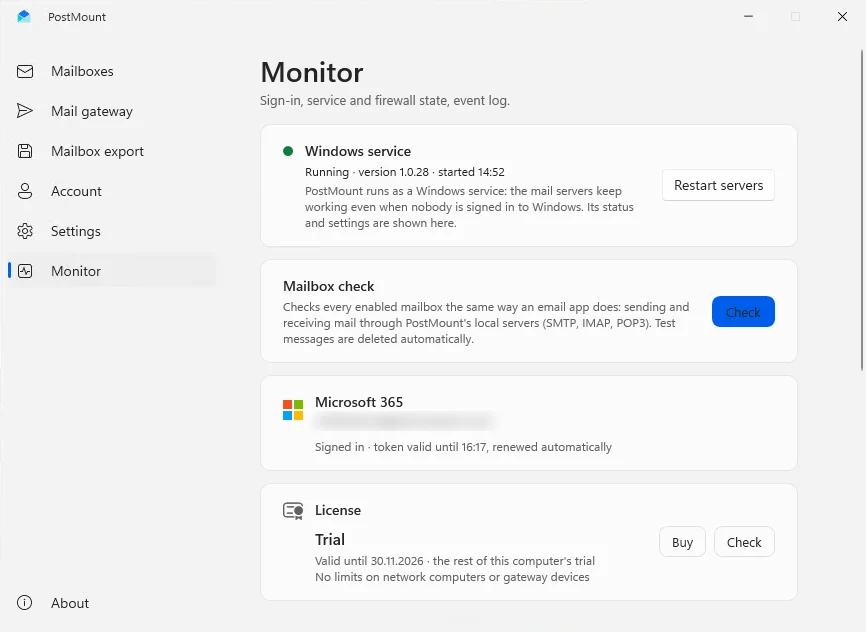
The script moves the app’s settings and Microsoft 365 sign-in to the service, and the PostMount window becomes its control panel. When the scheduled task updates the app, the service picks up the new version by itself within an hour. Details: How to run PostMount as a Windows service.
Common problems
| What you see | Why | What to do |
|---|---|---|
winget is not recognized | Windows Server 2022/2019, or Server Core | Install winget (App Installer) per Microsoft’s instructions; use Desktop Experience for apps with a window |
| The msstore source asks to accept agreements every time | Agreements are accepted per user | Add --accept-source-agreements to every command, as above |
| “No applicable installer found” or the app is not found | The publisher doesn’t offer the app for this OS, or the ID is wrong | Check the ID on apps.microsoft.com; ask the publisher whether the app is available for Windows Server |
| The app installed but doesn’t start under the built-in Administrator | Some UWP apps refuse to run under that account | Use another administrator account |
The update task shows result 1 or another error code | winget’s exit code is passed through | Read %ProgramData%\PostMount-update.log; “No available upgrade found” is fine — use the command above, which maps it to 0 |
winget list --id … finds nothing | Without --source msstore winget searches by the installed package’s own ID | Use winget upgrade --id … --source msstore or Get-AppxPackage |
Questions
Can I install Microsoft Store apps on Windows Server?
Yes. Windows Server 2025 with Desktop Experience includes winget with the msstore source: winget install --id <Store ID> --source msstore.
Do I need a Microsoft account?
Not for free apps. winget gets the package on behalf of the signed-in Windows user.
Will Store apps update by themselves on Windows Server?
No — there is no Store app to do it. Schedule winget upgrade --id … --source msstore as shown above.
Can the update task run as SYSTEM?
No. winget installs Store apps on behalf of a user, so the task runs as an administrator account with S4U logon — no password is stored.
Does this work on Windows Server 2022?
Server 2022 doesn’t include winget; once it is installed, the same commands apply. Our test was on Windows Server 2025.
Sources