

What Endpoint Central can use with Microsoft 365
Endpoint Central (formerly Desktop Central, including the MSP edition) sends mail only over SMTP: Admin → Server Settings → Mail Server, with two authentication types — Basic and OAuth. There is no Microsoft Graph option, which some other ManageEngine products have. With Microsoft 365 that leaves three practical routes:
| OAuth (SMTP AUTH) | Basic (SMTP AUTH) | Local relay — PostMount | |
|---|---|---|---|
| App registration in Entra | Yes, with a client secret | No | No |
| Works with SMTP AUTH turned off in the tenant | No | No | Yes (Microsoft Graph) |
| Shared mailbox as the sender | No — a licensed mailbox | Licensed user | Yes, without a license |
| Extra admin role for the sending account | Application Administrator | No | No |
| Something that expires | Client secret, max 24 months | Basic auth itself | Nothing |
| Extra software | No | No | PostMount on the Endpoint Central server |
Why SMTP AUTH is the weak spot
Both built-in options sign in to smtp.office365.com with SMTP AUTH (client submission). Microsoft keeps that
protocol on a short leash: it is turned off when security defaults are on, the CIS Microsoft 365 benchmark recommends
turning it off for the whole tenant, and it can be disabled per mailbox. OAuth changes how the account signs in — it does
not get past a disabled protocol. Typical errors in Endpoint Central are 535 5.7.139 (SMTP AUTH is
disabled) and 535 5.7.3 (authentication unsuccessful).
Basic authentication for SMTP AUTH is being retired as well: under Microsoft’s current plan (message center MC786329) it is off by default from the end of December 2026, administrators can still turn it back on for a while, and the final removal date is due in the second half of 2027.
Option 1: OAuth (the official way)
ManageEngine’s guide for Office 365 requires:
- TLS 1.2 on the Endpoint Central server, and SMTP AUTH enabled in the tenant and for the mailbox (Authenticated SMTP under Mail → Email apps in the Microsoft 365 admin center);
- an app registration in Microsoft Entra with the Redirect URL copied from Endpoint Central, a client secret and the delegated Microsoft Graph permissions
SMTP.Send,offline_accessandUser.Readwith admin consent; - a Username — the account that signs in — with an Exchange Online license and the Application Administrator role;
- a sender with its own mailbox, “not a shared one”; if it differs from the Username, the Username needs Send on behalf;
- server
smtp.office365.com, port587, TLS on.
In the MSP edition the form also asks for Authorization URL, Token URL and Scope. Use your tenant’s own
v2 endpoints from the app’s Endpoints page — https://login.microsoftonline.com/<tenant ID>/oauth2/v2.0/authorize and
…/oauth2/v2.0/token; ManageEngine warns that the generic common endpoints fail. For SMTP, Microsoft’s documentation uses
the scope https://outlook.office.com/SMTP.Send offline_access.
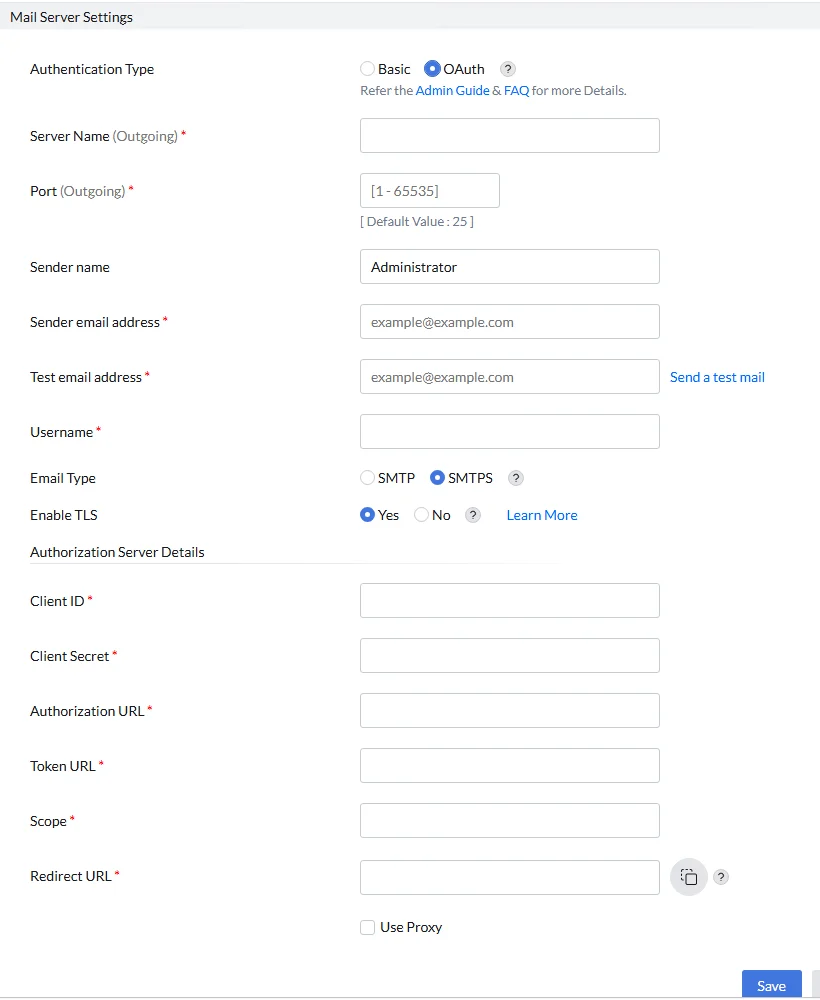
We didn’t run this route ourselves: the steps above are from ManageEngine’s and Microsoft’s documentation. Two things to plan for: the client secret lasts at most 24 months and Microsoft doesn’t warn before it expires — alerts simply stop; and the Application Administrator role on the sending account is far more than sending mail needs.
Option 2: Basic SMTP AUTH (temporary)
Basic, smtp.office365.com, port 587, TLS on, Requires Authentication with the mailbox’s
address and password. It works only while SMTP AUTH and basic authentication are allowed for that mailbox, the account has a license, and
MFA or Conditional Access don’t block the sign-in. Treat it as a stopgap until the end of 2026.
Option 3: a local relay with PostMount (tested)
PostMount runs a small SMTP server next to Endpoint Central and delivers each message through
Microsoft Graph — not SMTP AUTH — on behalf of a mailbox you choose. Endpoint Central only talks to localhost, so
nothing changes on its side when Microsoft changes SMTP rules. We set this up on Endpoint Central MSP running on Windows Server 2025.
1. Install PostMount on the Endpoint Central server
Install it from the Microsoft Store, sign in with an account that may send from the chosen mailbox and add that mailbox. On Windows Server, where there is no Store app, use winget — see Microsoft Store apps on Windows Server 2025. To keep mail flowing with nobody signed in, run PostMount as a Windows service.
2. Turn on the mail gateway
In PostMount open Mail gateway, switch it On, pick the Main sender — a shared mailbox such as
notifications@ works and needs no license — and keep port 25. Leave Devices (IP) empty: with Endpoint
Central on the same server, the gateway accepts it as “this computer”.
3. Point Endpoint Central at the gateway
Admin → Server Settings → Mail Server:
| Field | Value |
|---|---|
| Authentication Type | Basic |
| Server Name (Outgoing) | localhost |
| Port (Outgoing) | 25 |
| Sender email address | the gateway’s sender mailbox |
| Email Type | SMTP |
| Enable TLS | No — the connection never leaves the server; PostMount uses HTTPS to Microsoft 365 |
| Requires Authentication | off |
Select Send a test mail, then Save.
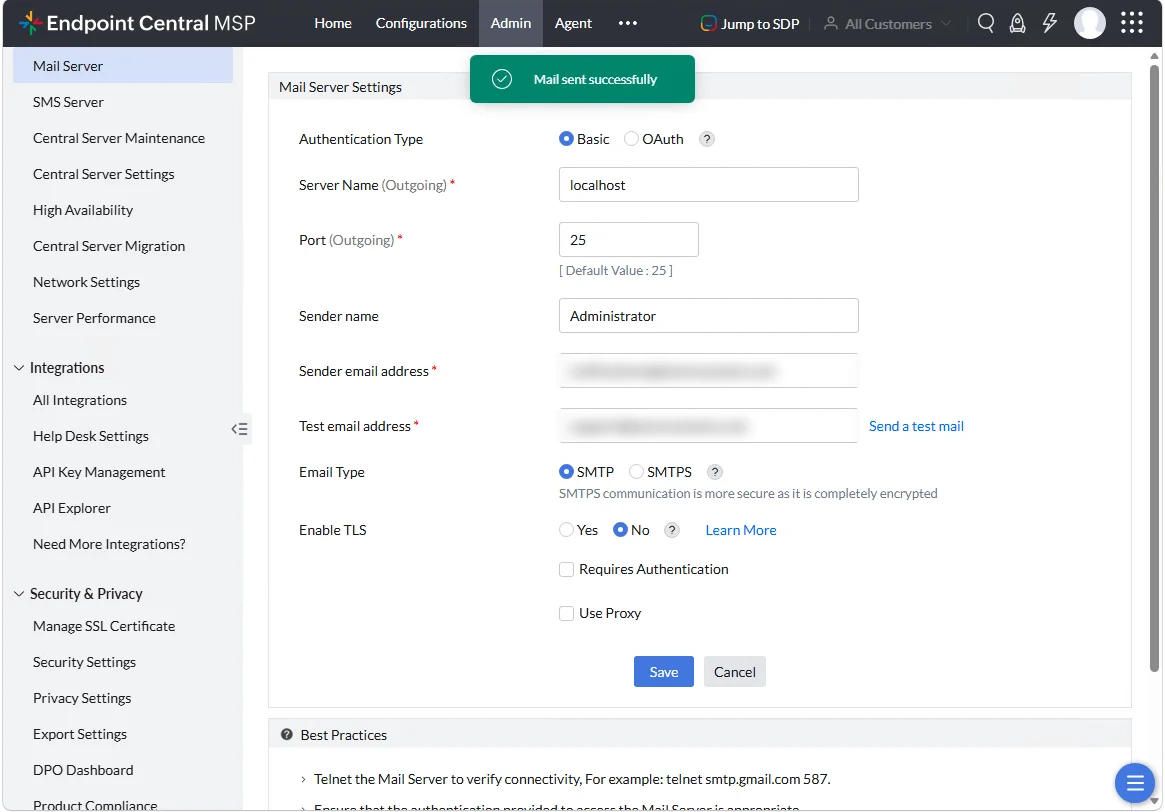
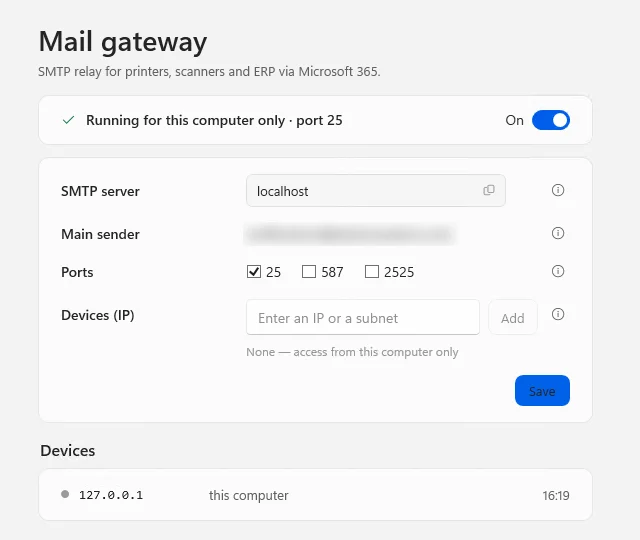
The test message arrived from the shared mailbox, and the gateway’s Devices list showed 127.0.0.1 · this computer.
If Endpoint Central runs on another server, enter the PostMount computer’s name instead of localhost and add the Endpoint Central
server’s IP address under Devices (IP).
PostMount has a 14-day free trial — download for Windows.
Close PostMount’s ports to the network
Here PostMount serves only Endpoint Central on the same server, so nothing from outside should reach it. With the gateway set to this computer only (the default) PostMount listens on the loopback addresses alone — check it:
Get-NetTCPConnection -State Listen -LocalPort 25,110,143,587,2525 | Select-Object LocalAddress, LocalPort
Only 127.0.0.1 and ::1 should be listed. Still, close the ports in Windows Firewall as well — and treat this as
mandatory on a server in the cloud or with a public IP address. Installing from the Microsoft Store adds inbound
allow rules for ports 25, 110, 143, 587 and 2525, and the service script adds a PostMount Service rule; one changed
setting would be enough to expose an SMTP relay to the internet. A single block rule closes all of them:
New-NetFirewallRule -DisplayName 'PostMount - block from network' -Direction Inbound -Protocol TCP -LocalPort 25,110,143,587,2525 -Action Block -Profile Any- A block rule beats any allow rule and survives app updates, unlike simply disabling the Store’s rules.
- Windows Firewall doesn’t filter loopback traffic, so Endpoint Central keeps sending to
localhost:25. - In the cloud, also keep these ports closed in the provider’s network rules (security group, network security group) — open only what you use to manage the server.
Check from another computer — the connection must fail:
Test-NetConnection <server name or IP> -Port 25
TcpTestSucceeded : False means the port is closed. If you later want printers or other servers to use the gateway, remove the
rule (Remove-NetFirewallRule -DisplayName 'PostMount - block from network') and allow only their addresses in
Devices (IP).
Common problems
| What you see | Why | What to do |
|---|---|---|
535 5.7.139 SmtpClientAuthentication is disabled | SMTP AUTH is off for the tenant or the mailbox (security defaults, a policy) | Enable SMTP AUTH for that mailbox (if allowed), or send through a local relay that uses Graph |
535 5.7.3 Authentication unsuccessful | Wrong account or password, no license, MFA/Conditional Access, OAuth endpoints with common | Check the Username against the account that signed in, its license and the tenant-specific URLs |
| OAuth worked for months, then alerts stopped | The client secret expired | Create a new secret in Entra and enter it in Endpoint Central |
| “Mail sent successfully”, but nothing arrives (local relay) | The sender isn’t a mailbox PostMount may send from, or the message is waiting in its queue | Check the gateway’s sender and the log in PostMount’s Monitor |
Connection refused on localhost:25 | The gateway is off or another program holds port 25 | Turn the gateway on; check its ports in PostMount’s Monitor |
Questions
Does Endpoint Central support Microsoft 365 email?
Yes, over SMTP: OAuth (recommended by ManageEngine) or basic authentication to smtp.office365.com. It has no Microsoft Graph option.
Can Endpoint Central send from a shared mailbox?
Not with OAuth — ManageEngine requires a sender with its own licensed mailbox. Through a local relay such as PostMount, a shared mailbox without a license works.
Will OAuth keep working if SMTP AUTH is disabled in Microsoft 365?
No. OAuth is a way to sign in to SMTP AUTH; if the protocol is disabled for the tenant or mailbox, it fails with 5.7.139.
When does basic authentication stop working?
Microsoft plans to turn it off by default at the end of December 2026 and to announce the final removal date in the second half of 2027.
Should PostMount’s ports be open on the server?
No, when only Endpoint Central on the same server uses it. PostMount then listens on localhost only; also block ports 25, 110, 143, 587 and 2525 in Windows Firewall — especially on a cloud server with a public IP.
Does PostMount have to run on the Endpoint Central server?
It’s the simplest setup — localhost, no IP list. It can also run on another Windows computer in the network; then allow the Endpoint Central server’s IP in the gateway.
Sources
- ManageEngine — How to configure Office 365 in mail server settings (Endpoint Central).
- ManageEngine — Fixing authentication failures with Microsoft OAuth in mail server settings.
- Microsoft Learn — Enable or disable authenticated client SMTP submission (SMTP AUTH).
- Microsoft Learn — Authenticate an IMAP, POP or SMTP connection using OAuth (SMTP.Send scope).
- Microsoft 365 message center MC786329 — Exchange Online to retire Basic auth for SMTP AUTH.
- Microsoft Learn — Add credentials to an app (client secret lifetime up to 24 months).