

What a shared mailbox really is
A shared mailbox in Microsoft 365 (Office 365) is an ordinary user account with a mailbox — only its sign-in is blocked and it has no license. Nobody signs in to it directly: people with permissions open it from their own mailbox, and replies go out from the shared address. Because it is the same kind of account, a shared mailbox can always be turned back into a regular one — and a regular mailbox can be converted to shared. We’ll use both later.
How to create a shared mailbox
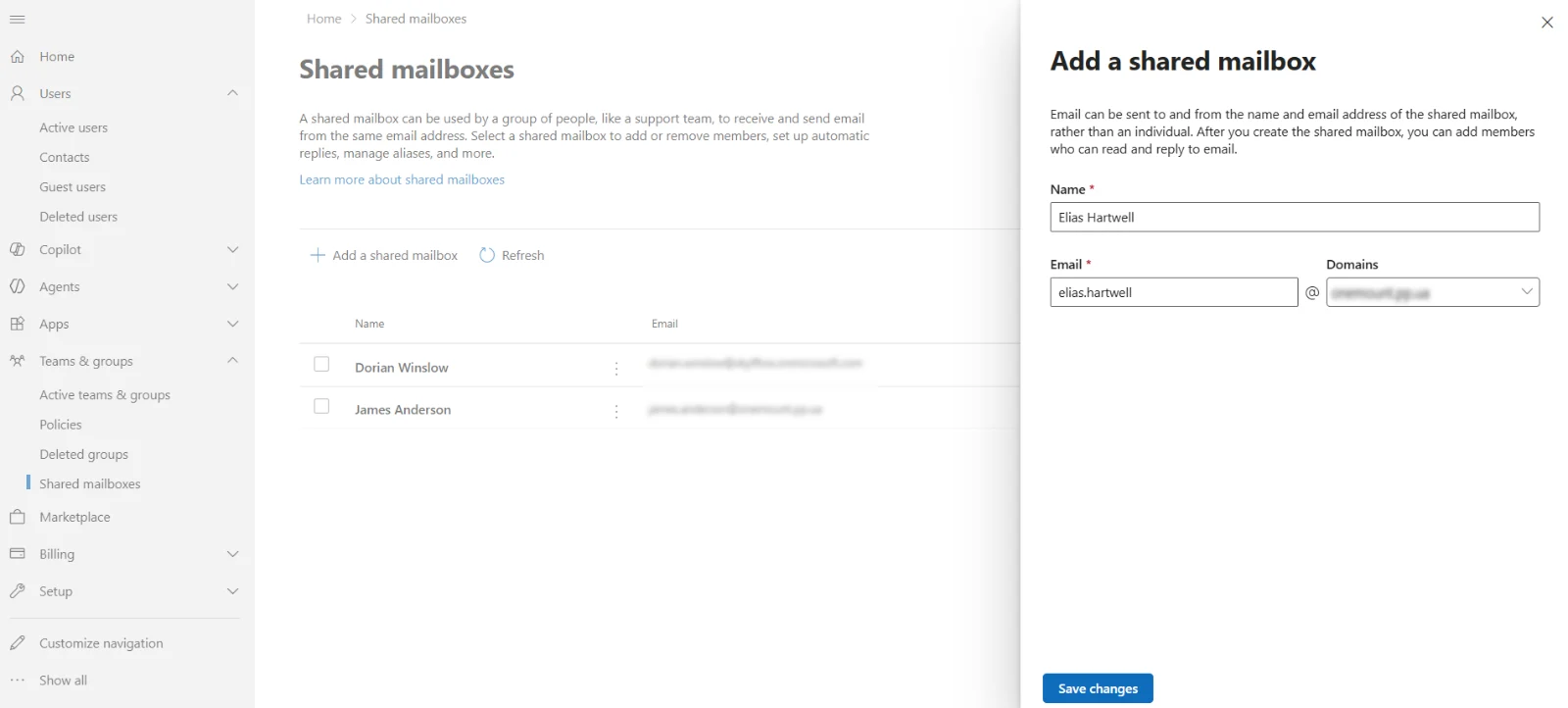
- Open the Microsoft 365 admin center → Teams & groups → Shared mailboxes → Add a shared mailbox.
- Enter the display name and the address, pick the domain and select Save changes.
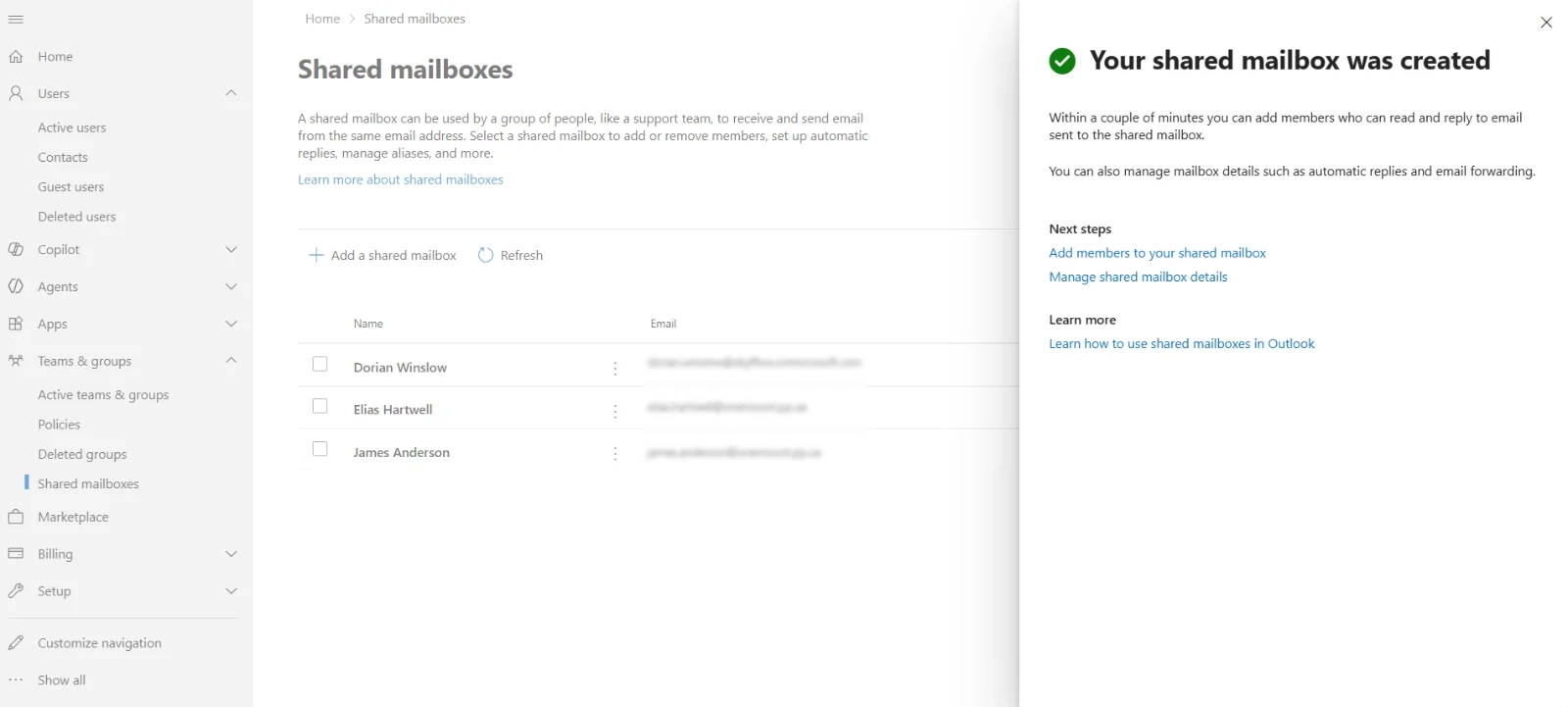
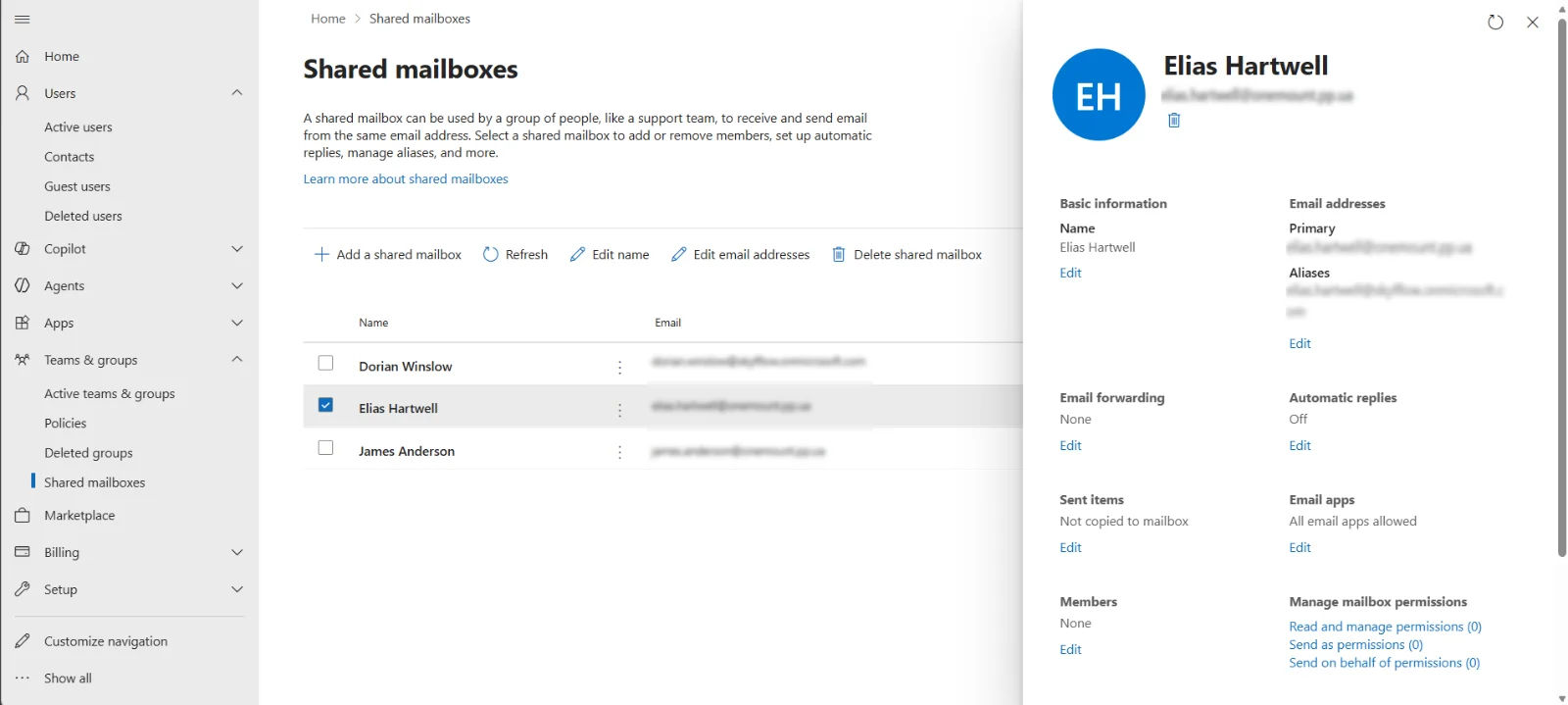
- Within a couple of minutes the mailbox appears in the list. Its card shows members, permissions and the Sent items setting.
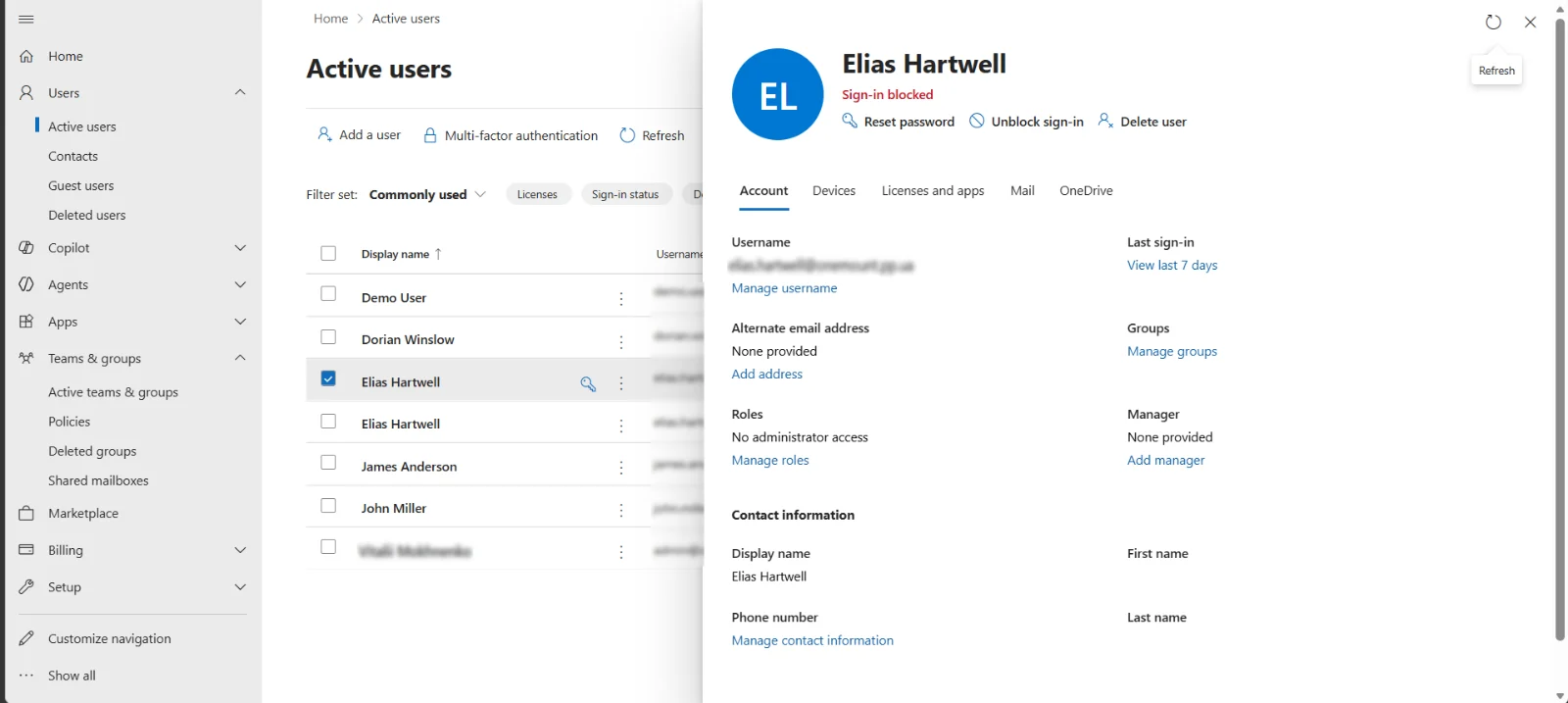
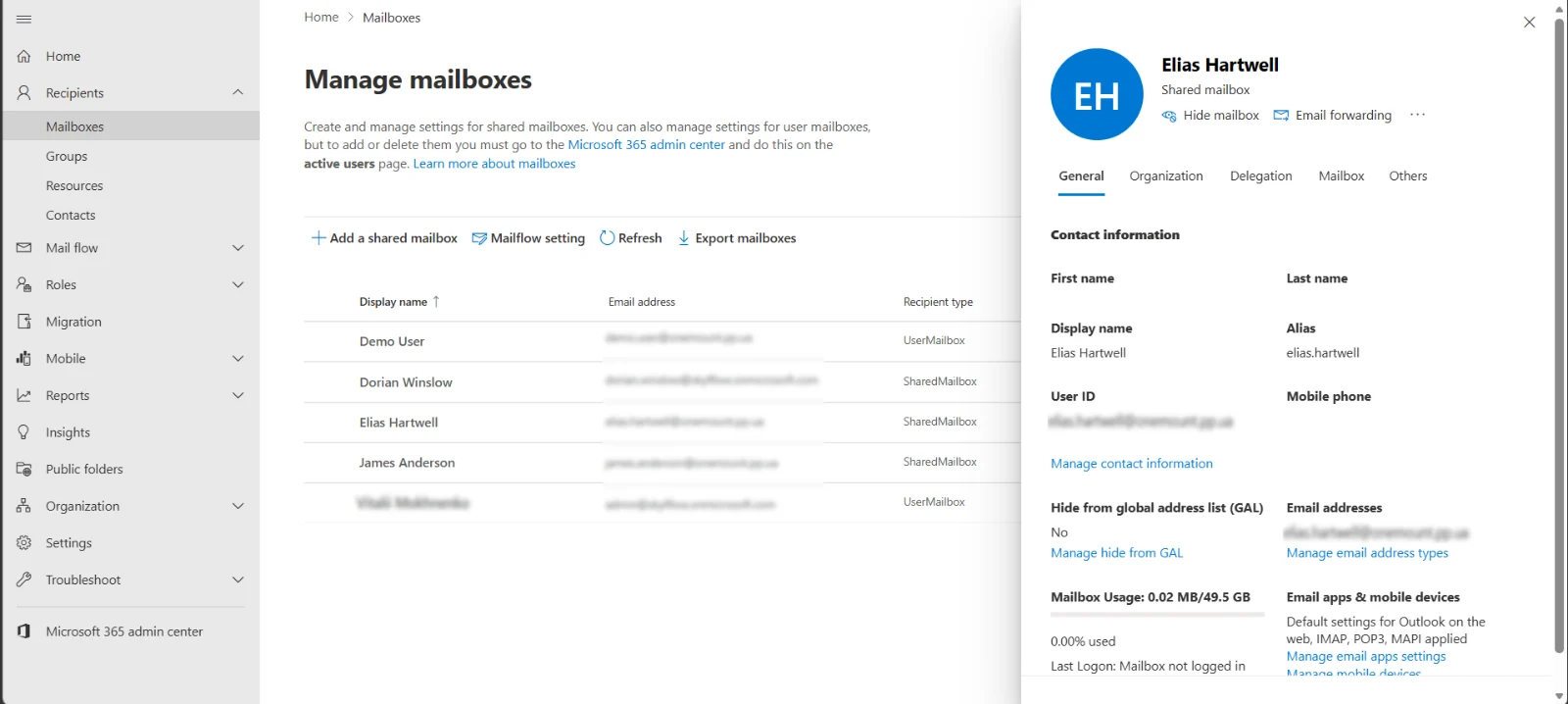
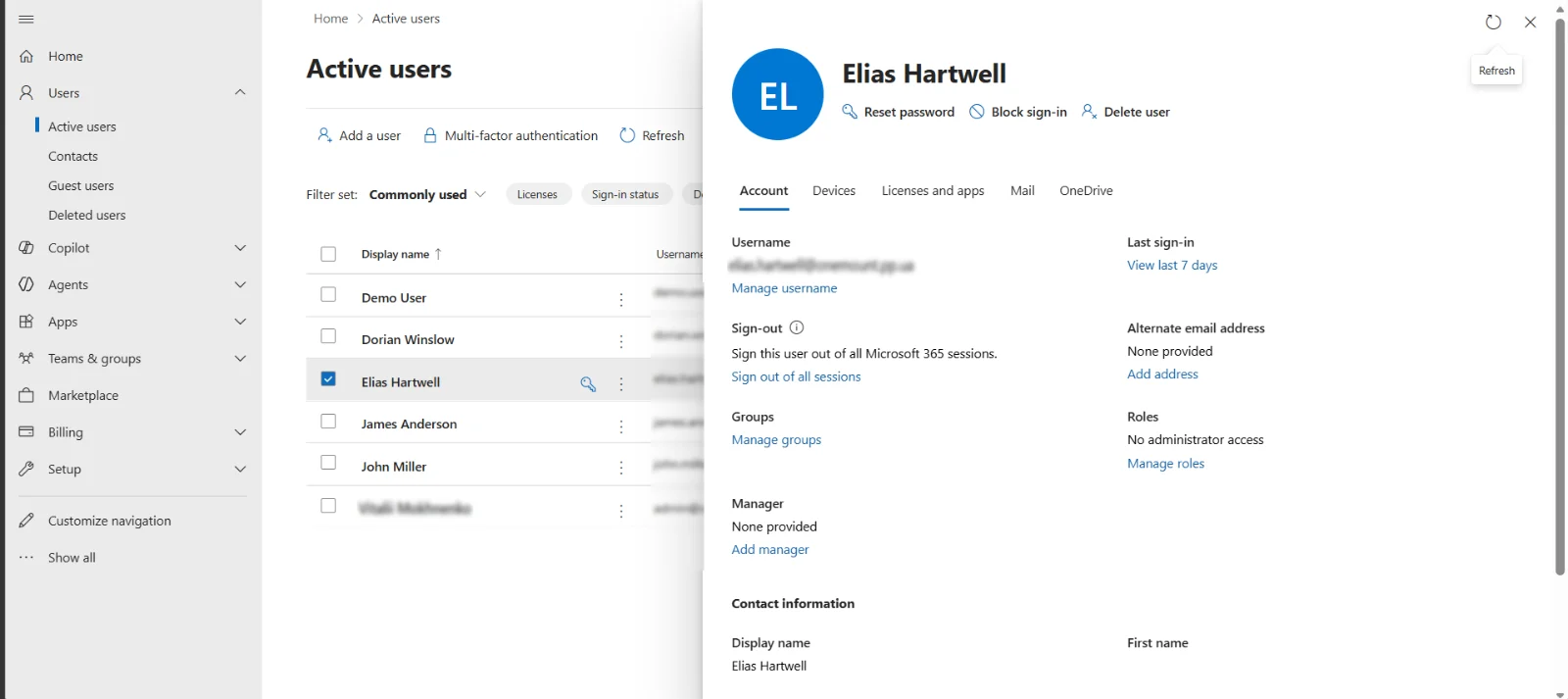
Look at the same account in Users → Active users: it is a normal user with
Sign-in blocked and no license. In the Exchange admin center its type is
SharedMailbox with a quota of about 50 GB.
How to give access: Full Access, Send As, Send on behalf
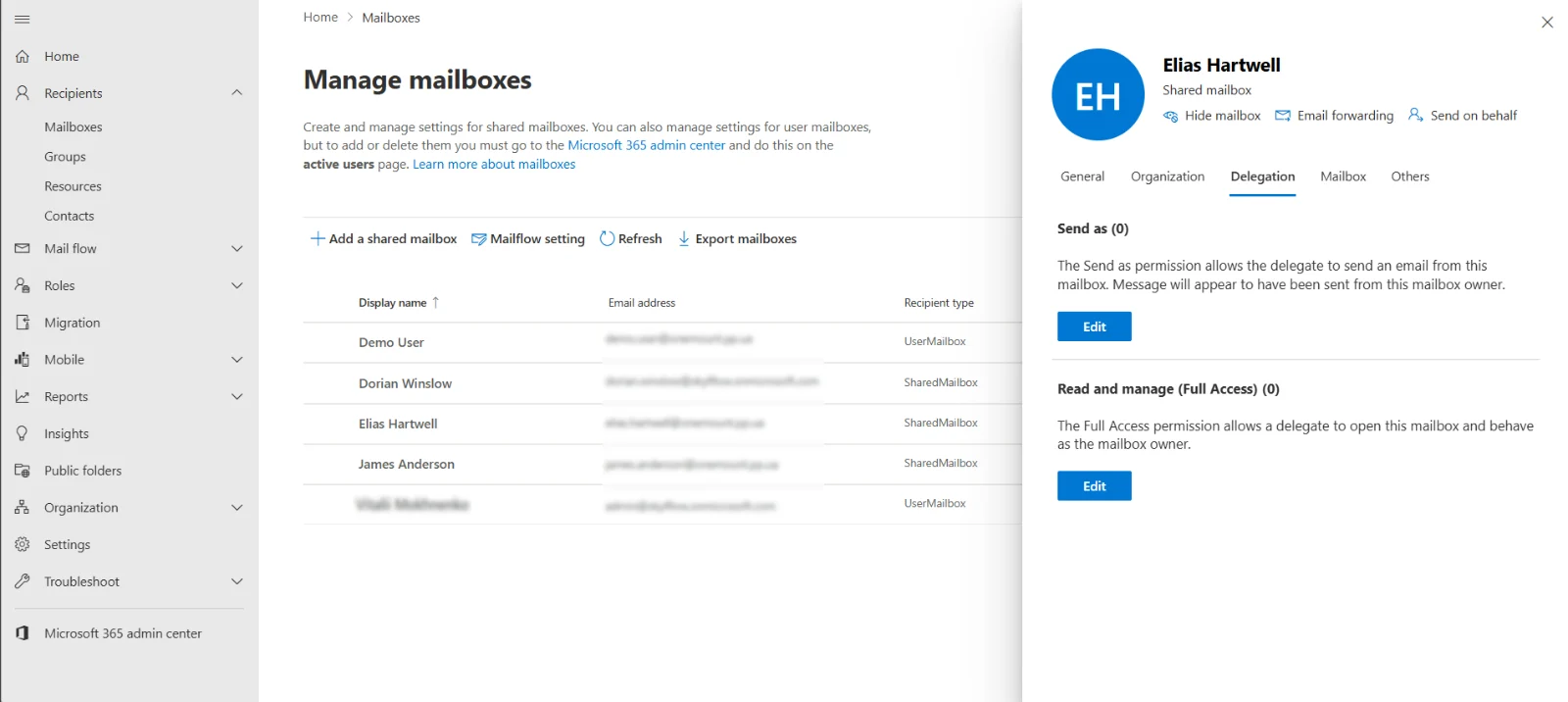
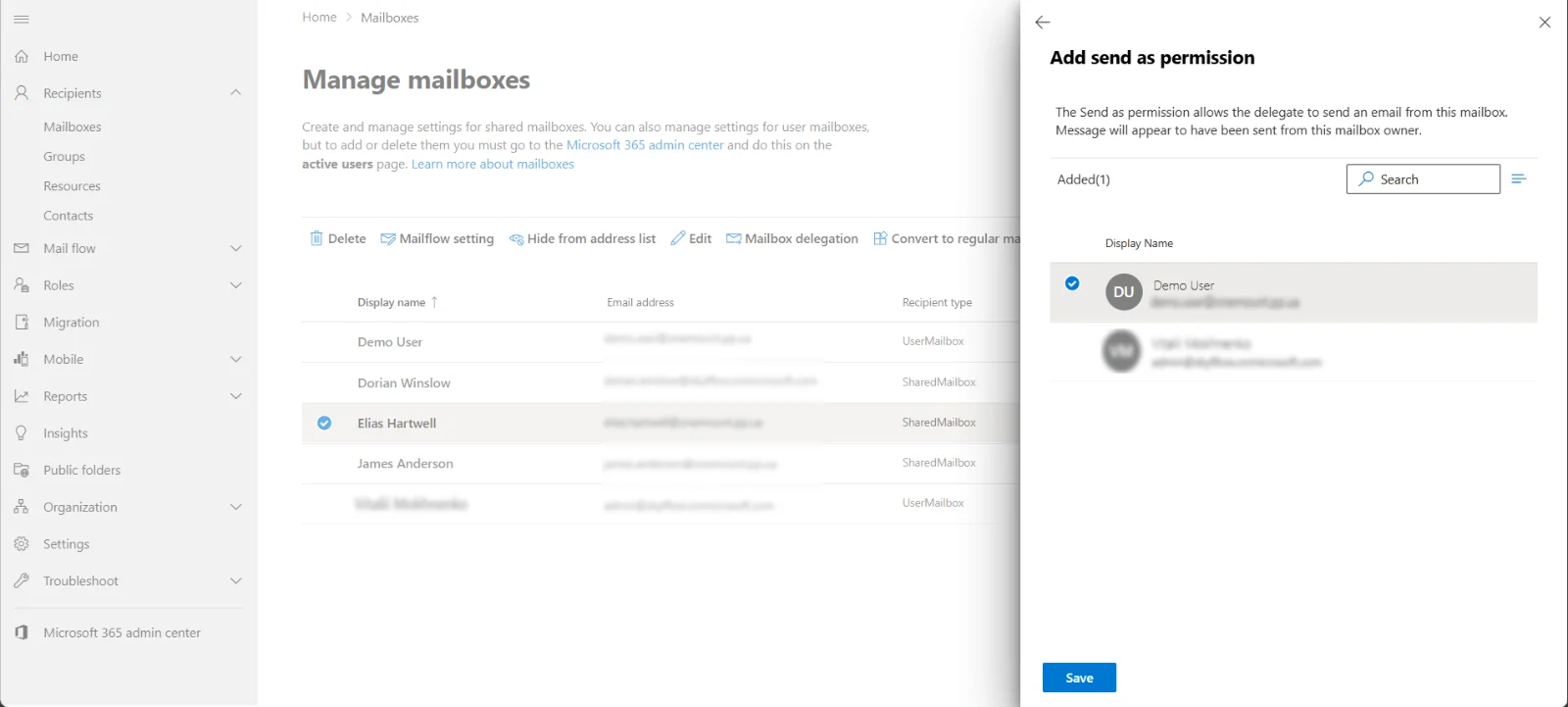
Open the Exchange admin center → Recipients → Mailboxes → the shared mailbox → Delegation. There are three separate permissions:
| Permission | What it allows | What the recipient sees |
|---|---|---|
| Read and manage (Full Access) | Open and read the mailbox | — does not allow sending |
| Send as | Send from the shared address | support@contoso.com |
| Send on behalf | Send on behalf of the mailbox | Anna on behalf of support@contoso.com |
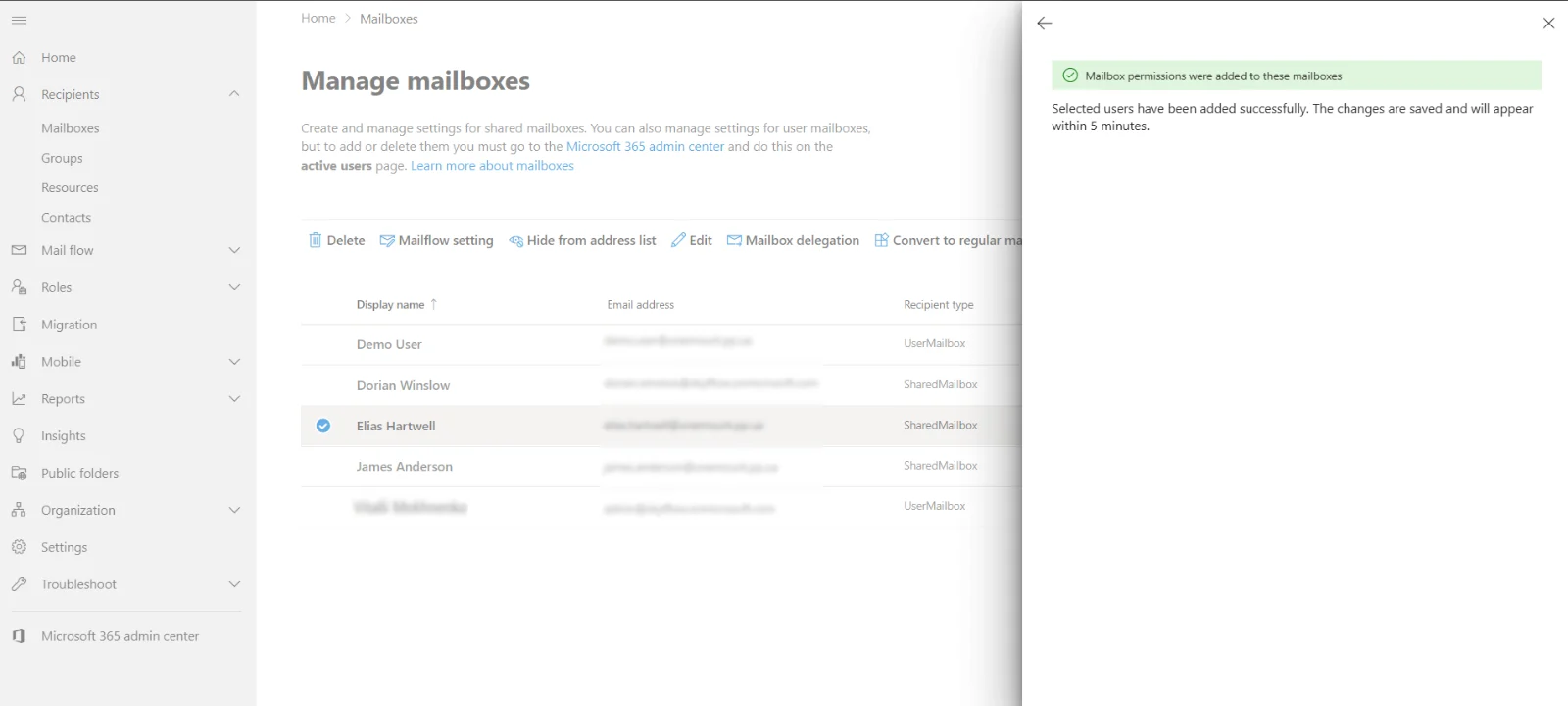
We gave Full Access and Send as to a regular user and to the administrator. Microsoft says the changes appear within 5 minutes — in practice it can take longer.
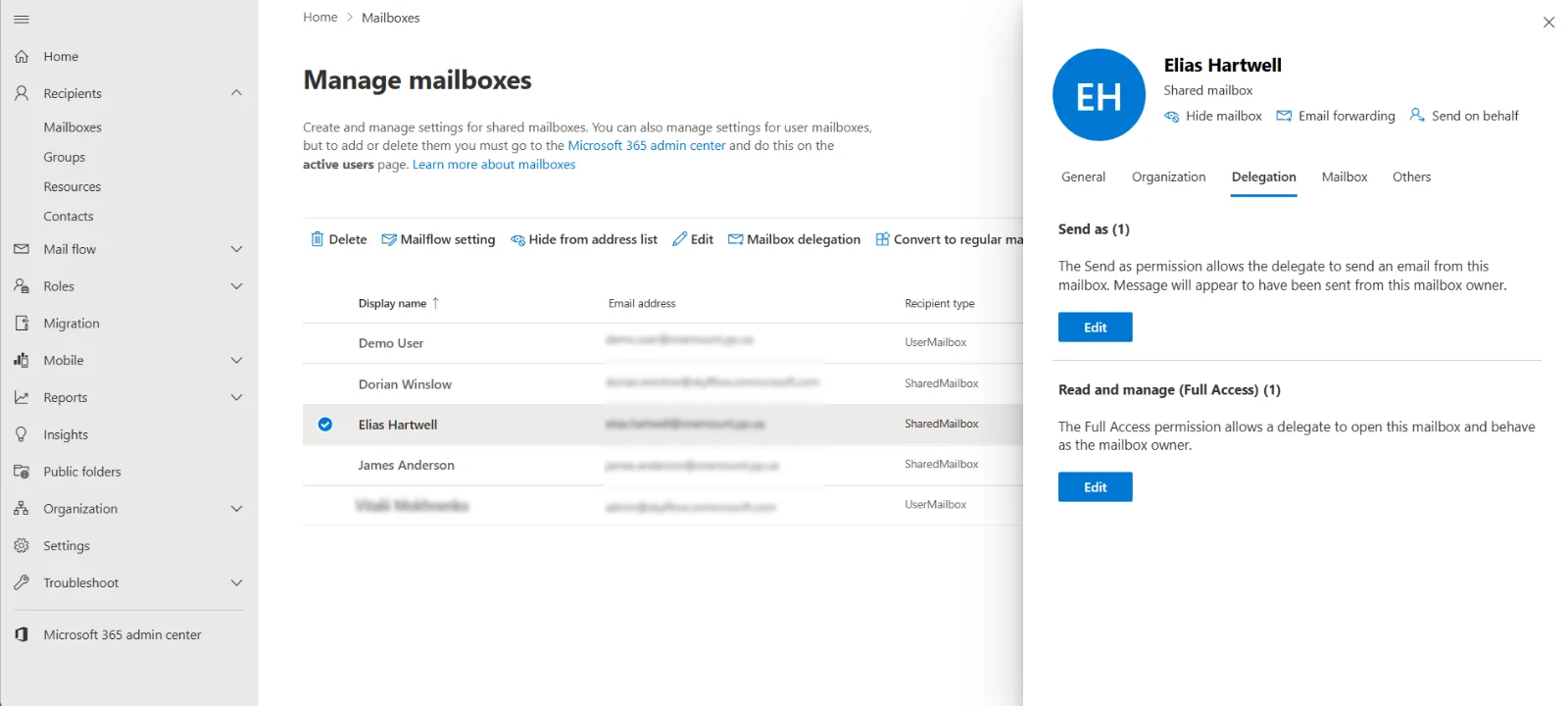
Tip: by default, messages sent from a shared mailbox are saved only in the sender’s own Sent Items. To keep a copy in the shared mailbox, change Sent items on the mailbox card in the admin center.
How to open a shared mailbox in Outlook
Outlook on the web
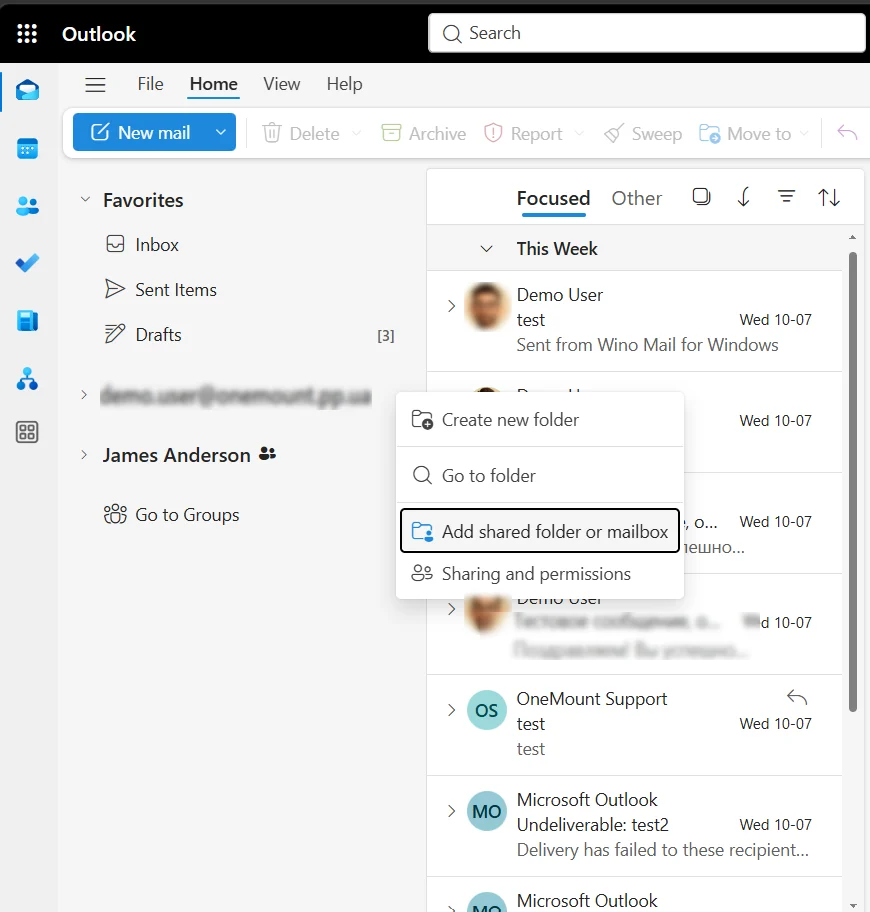
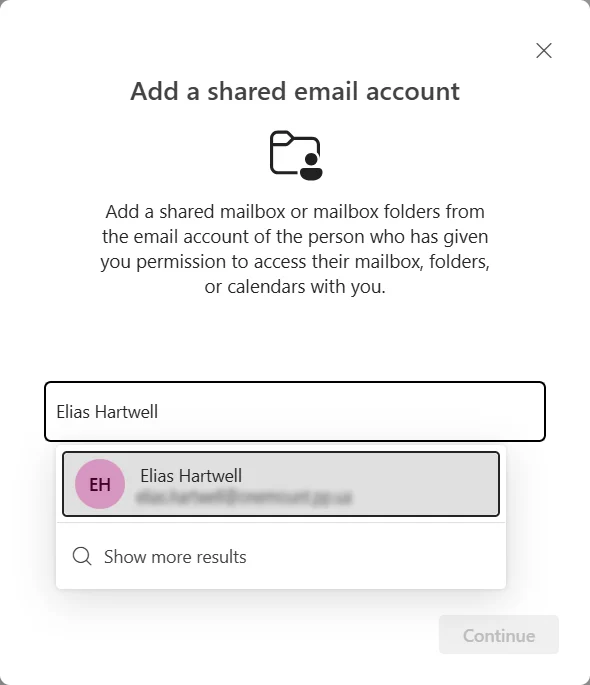
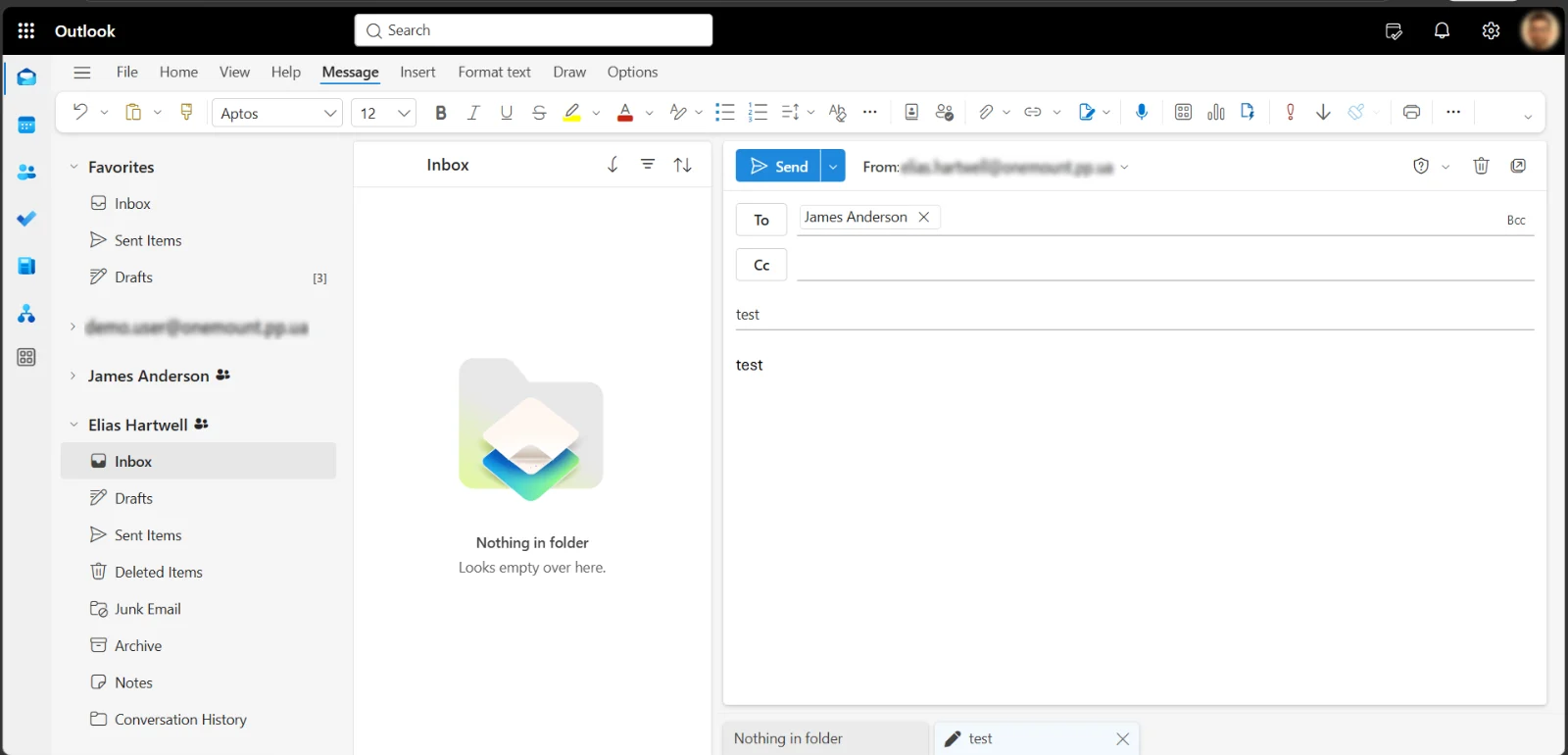
The shared mailbox doesn’t appear on its own. Right-click your folders → Add shared folder or mailbox, type the name and select it. After that you can read it and send from its address.
Classic Outlook for Windows
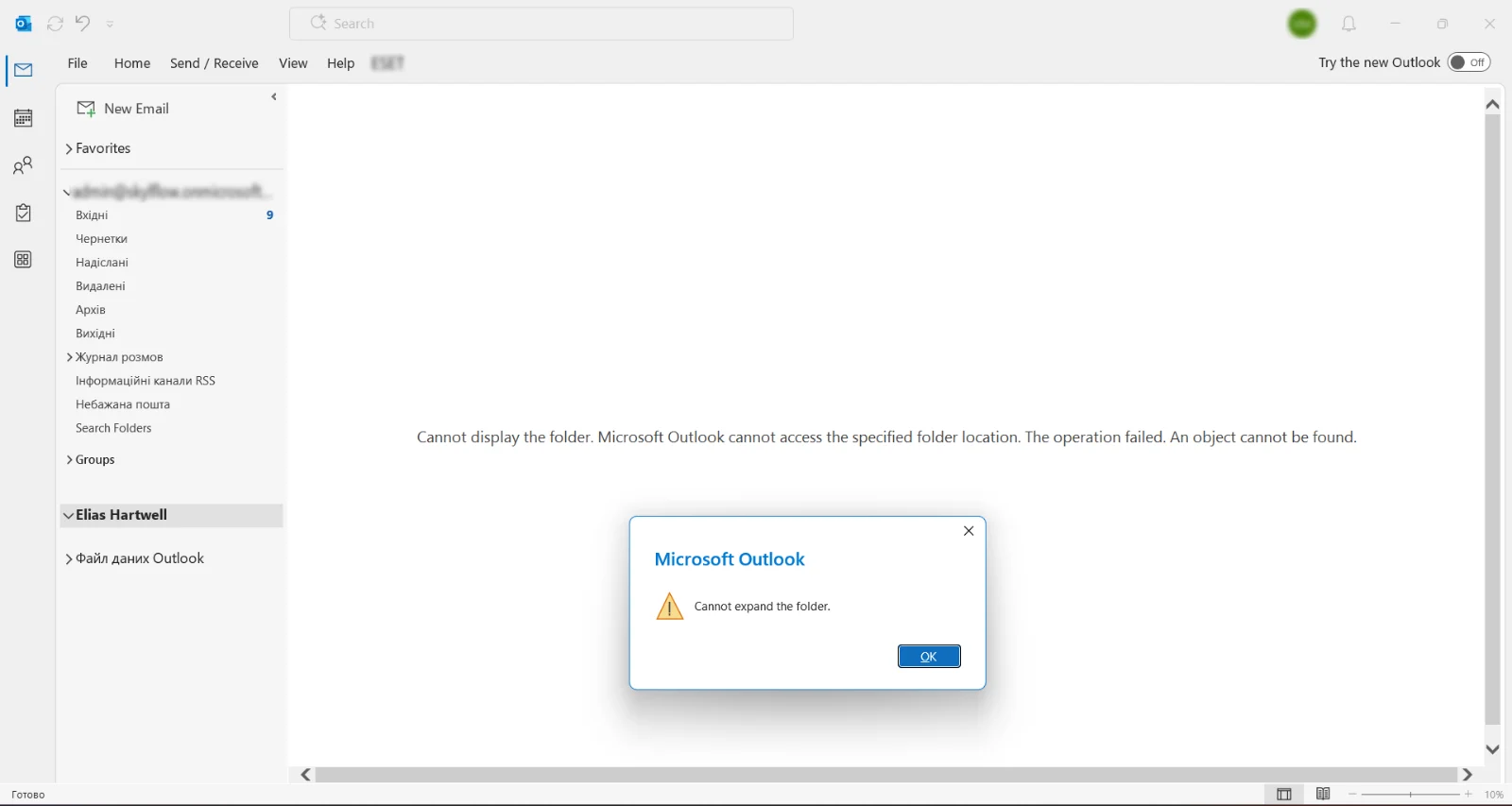
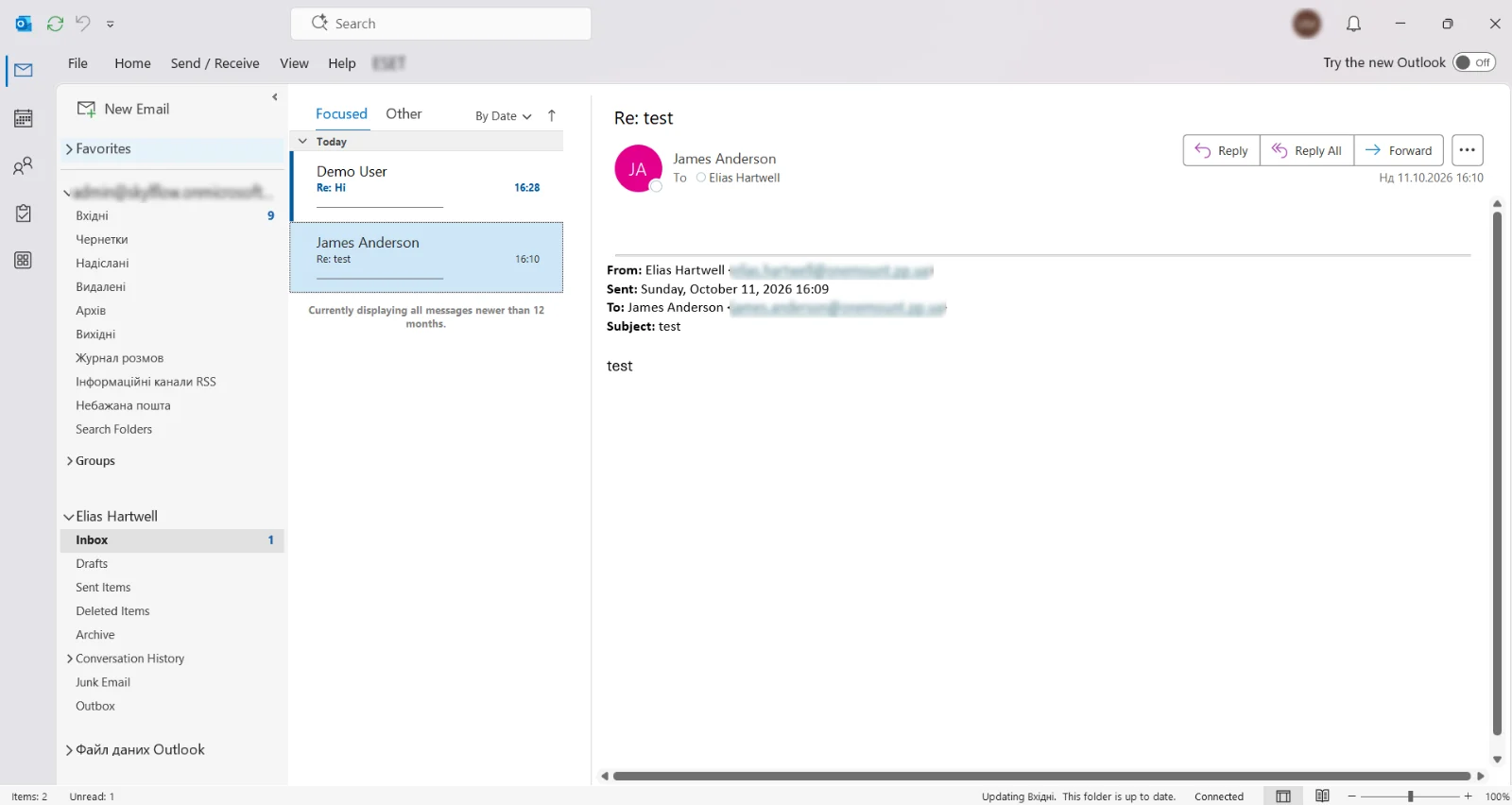
Here the mailbox is added automatically (AutoMapping) — but not straight away. At first Outlook may show “Cannot expand the folder”. In our test the mailbox opened by itself after about 15 minutes; the bigger the mailbox, the longer it takes. So don’t worry if it isn’t there immediately — just wait. AutoMapping works only when access is given to the user directly, not through a security group.
New Outlook for Windows
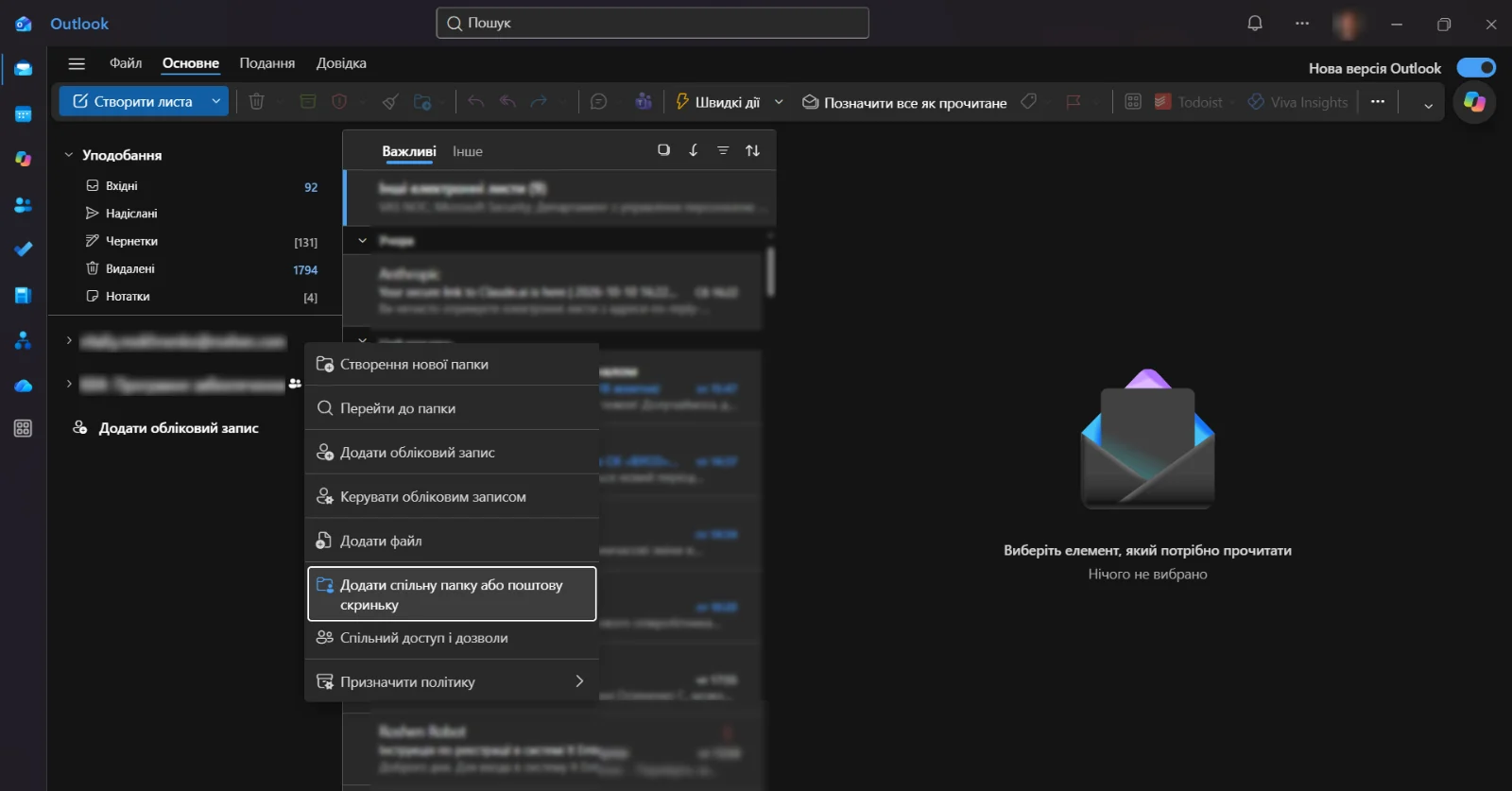
The new Outlook is essentially Outlook on the web in a desktop window: it works in the cloud and behaves the same way. So the shared mailbox won’t appear by itself here either — right-click your account in the folder list → Add shared folder or mailbox and enter its address.
Outlook on iPhone and Android
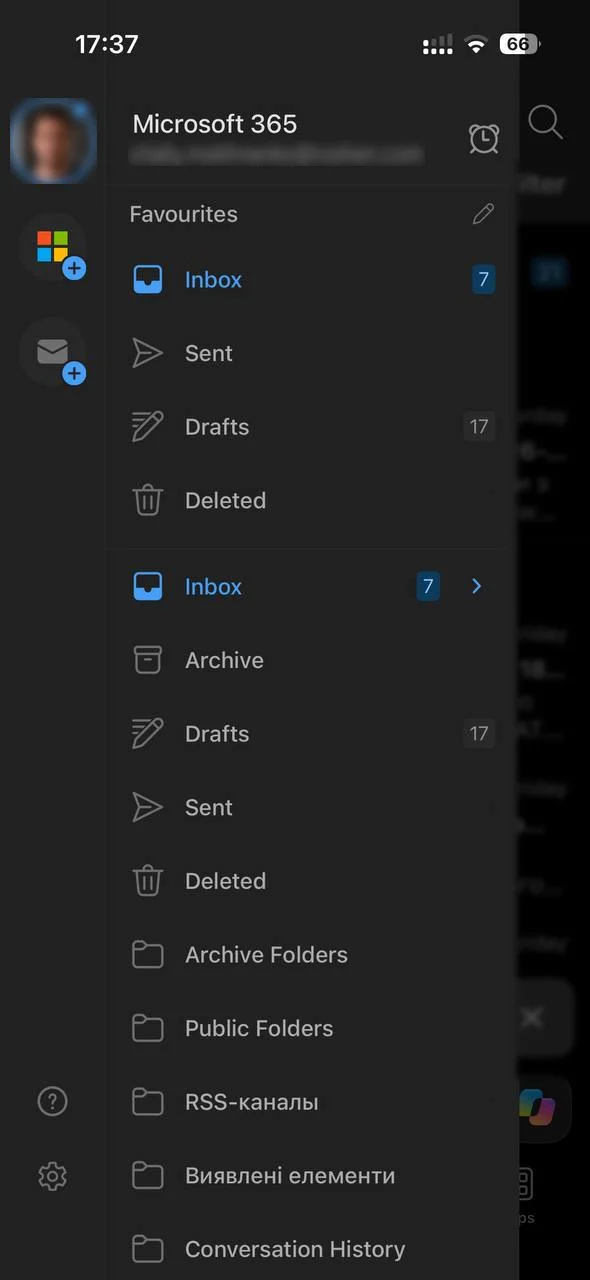
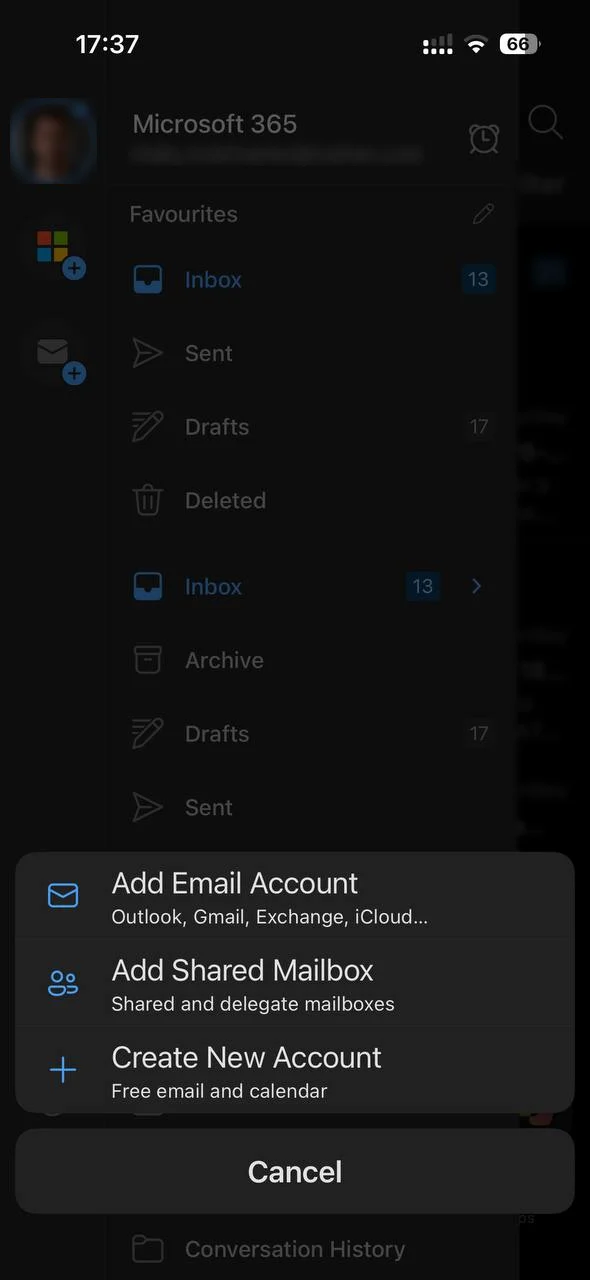
Same on the phone: the mailbox doesn’t show up on its own. Open the account panel, tap the envelope with a plus → Add Shared Mailbox, choose your account and enter the shared address. The mobile app shows it as a separate account with its own notifications.
Several mailboxes in one Outlook: which address is the message sent from?
Outlook fills in From based on the folder you are in. Select the shared mailbox’s Inbox and click New mail — the message goes from the shared address. Click New mail in your own Inbox — it goes from your personal address. You can always change From by hand before sending. It takes a little getting used to, and that’s where most “I sent it from the wrong address” mistakes come from. If you’d rather keep mailboxes apart, PostMount lets you connect each shared mailbox to a separate app — Thunderbird, The Bat! or another email client (see below).
Will classic Outlook keep working, and for how long?
Yes, for now. Microsoft is moving users to the new Outlook in three stages — opt-in, opt-out and cutover (according to Microsoft, as of October 2026):
- Microsoft has committed to supporting classic Outlook at least through 2029 — in Microsoft 365 Apps and in Office LTSC 2024.
- Since April 2026 the new Outlook is the default in Microsoft 365 for enterprise (business plans got it earlier), but users can switch back with the toggle in the top-right corner, and administrators can keep classic Outlook with a policy.
- Microsoft has promised at least 12 months’ notice before the final cutover.
- Office 2016 and 2019 reached end of support on 14 October 2025: classic Outlook from them still starts but no longer gets security updates.
For shared mailboxes this matters: only classic Outlook adds them automatically and can connect any IMAP/SMTP account, including a local one.
How to use a shared mailbox in other email apps
Outside Outlook things get harder: Thunderbird, The Bat!, ERP systems, help desks and scanners need IMAP, POP3 or SMTP, and signing in to the shared mailbox with its own password is not allowed. PostMount solves this through the delegated access you have just set up — it signs in to Microsoft 365 as the user and never signs in to the shared mailbox itself.
- In PostMount, sign in with the account that has Full Access (and Send As for sending).
- Mailboxes → Shared mailbox → enter the address → Add.
- Open the mailbox: PostMount shows the server, ports and a separate local password for your email app.
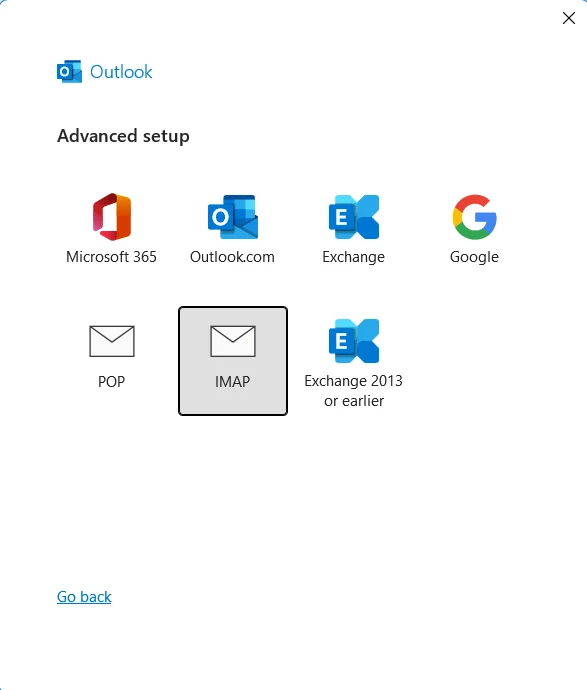
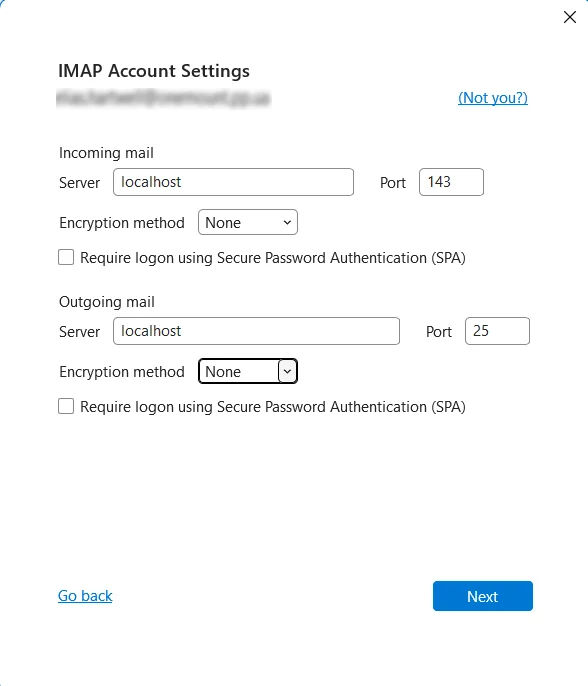
- In classic Outlook: add an account → Advanced options → Let me set up my account manually → IMAP → server
localhost, IMAP port143, SMTP port25, encryption None → the password from PostMount.
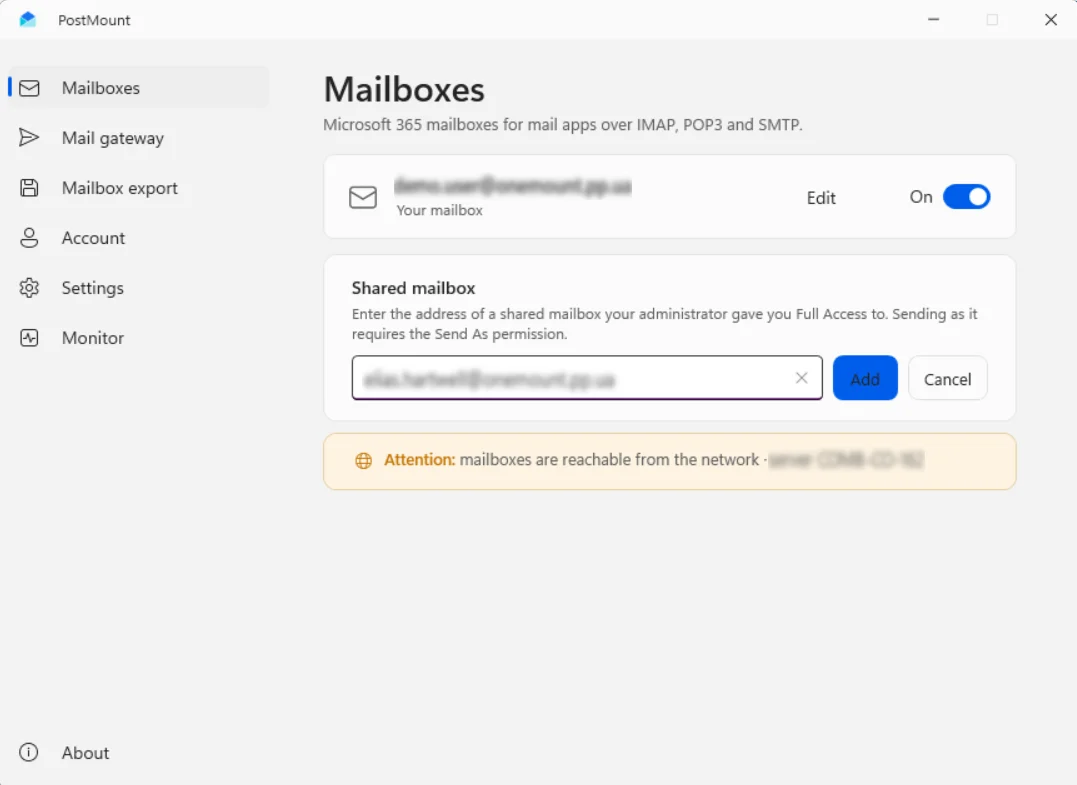
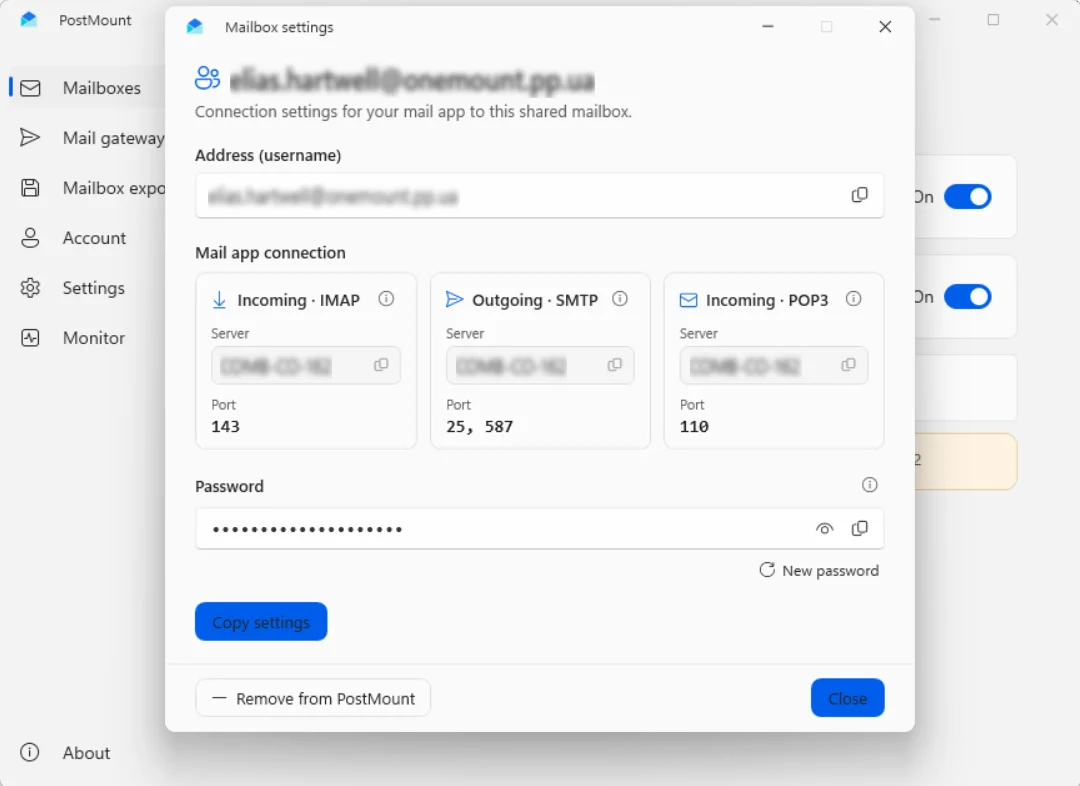
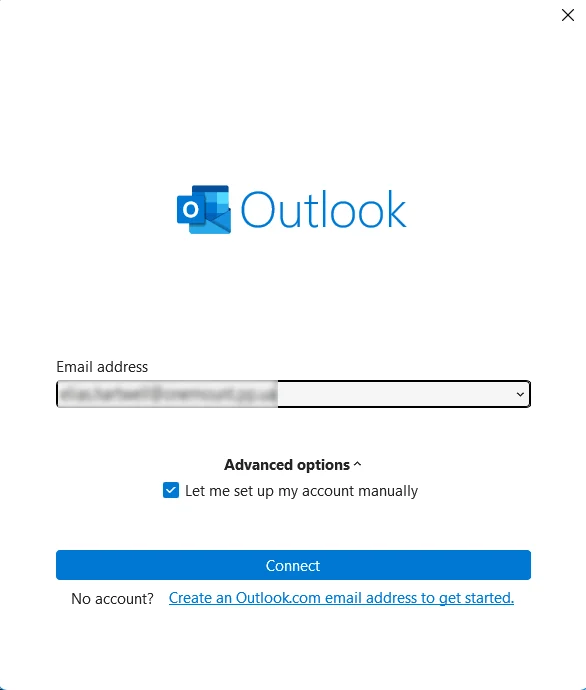
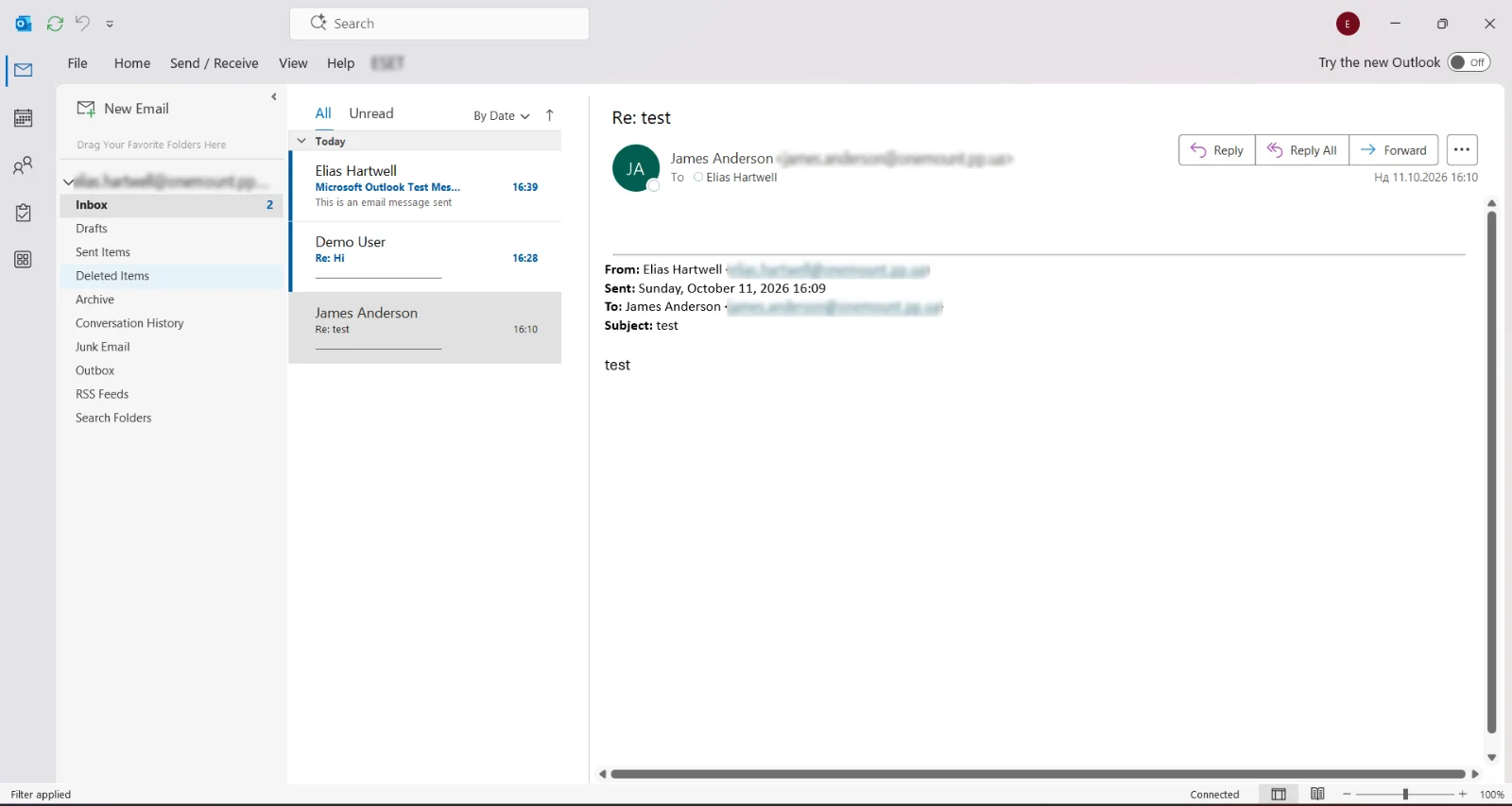
For an app on another computer, use the PostMount computer’s name as the server and turn on network access in PostMount.
The new Outlook won’t work with PostMount. It syncs IMAP accounts through Microsoft’s cloud rather than from
your computer, so it can’t reach a local server such as localhost or PostMount on your network. Use classic Outlook,
Thunderbird, The Bat!, eM Client or any other app that connects to IMAP/SMTP directly.
What this gives you:
- the shared mailbox as a separate account in classic Outlook, Thunderbird, The Bat!, eM Client — or in an ERP, help desk or scanner that speaks IMAP, POP3 or SMTP;
- reading, folders and sending from the shared address (with Send As);
- several shared mailboxes, each in its own app, so the From address is never mixed up;
- no sign-in to the shared mailbox and no password stored for it — access is the delegation you set up in Microsoft 365.
Limits: PostMount runs on a Windows computer that must stay on while the apps use it; the new Outlook can’t connect to it (see above); the person who signs in to PostMount needs to be given access to the shared mailbox.
PostMount has a 14-day free trial — download for Windows.
If the mailbox must sign in on its own
This is an exception. The recommended setup is the one above: sign-in blocked, people work through delegated access. For a device or system that can’t use delegation, first check whether it supports modern authentication (OAuth) or can send through PostMount.
Sometimes a program can’t use delegated access and has to sign in as the mailbox itself. Then unblock sign-in for the account (Users → Active users → Unblock sign-in), set a password and assign a license. After that you can sign in to PostMount directly with the shared mailbox account and connect the apps and devices you need over IMAP and SMTP.
How to convert a user mailbox to a shared mailbox
A common case: an employee leaves, and their mail must stay available to the team. Convert the mailbox instead of deleting it:
- Exchange admin center → Recipients → Mailboxes → the user → Convert to shared mailbox → Confirm.
- The mailbox must still have its license before converting; all mail and calendar items are kept.
- After converting, remove the license if the mailbox is under 50 GB. Don’t delete the account — it anchors the mailbox.
- Block sign-in: the old password keeps working after conversion.
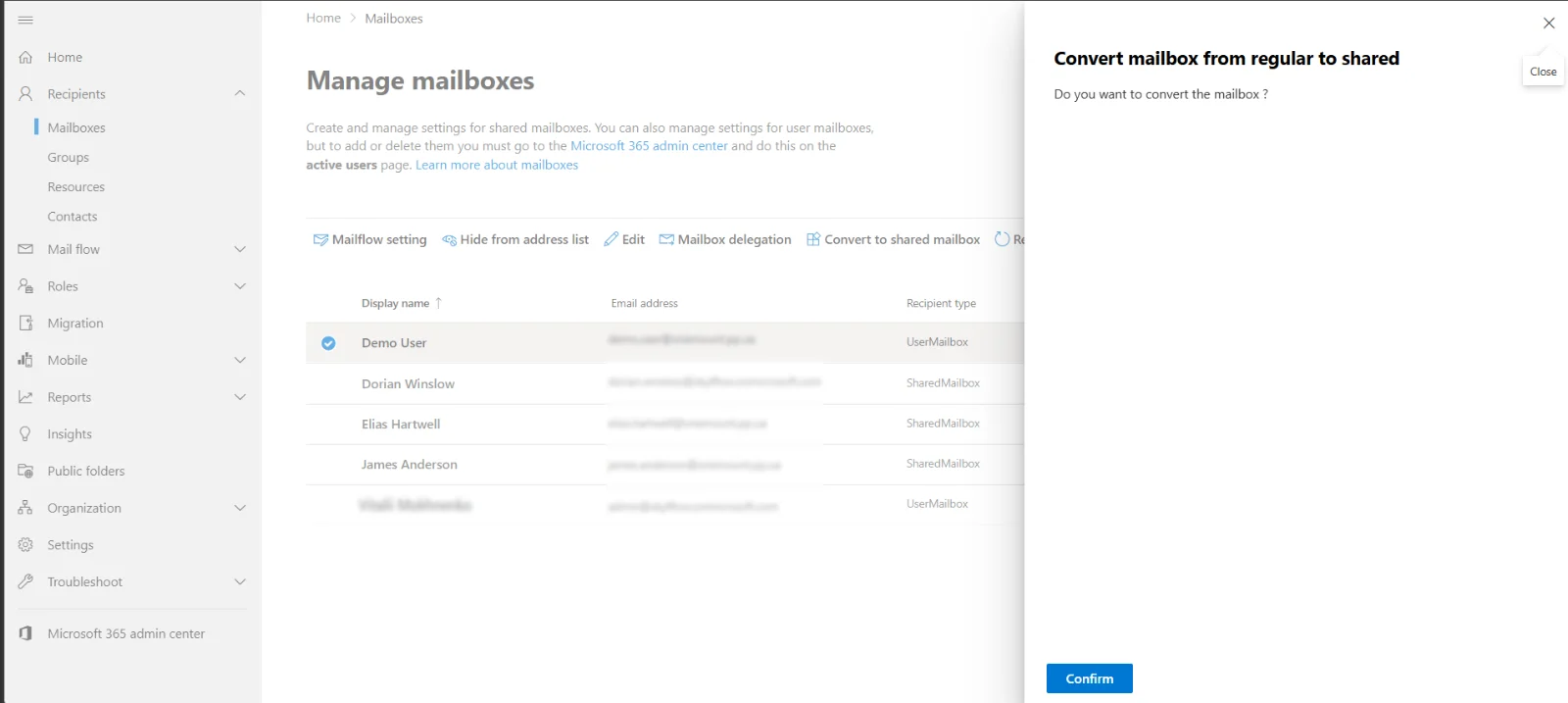
Then give access and connect it exactly as described above. The reverse is also possible: Convert to regular mailbox plus a license.
Common shared mailbox problems and fixes
These are the questions that come up again and again on Microsoft Q&A and admin forums:
| Problem | Why it happens | Fix |
|---|---|---|
| The shared mailbox doesn’t appear in Outlook | Permissions haven’t propagated yet; or access was given through a security group, which classic Outlook doesn’t auto-map; Outlook on the web and the new Outlook never add it on their own | Wait up to an hour; give Full Access to the user directly; or add the mailbox manually |
| “You do not have the permission to send the message on behalf of the specified user” | Only Full Access was granted, or Send As hasn’t applied yet; an old address cached in Outlook | Grant Send As; wait up to an hour; remove the old address from the To/From suggestions and update the offline address book |
| Replies go out from my personal address | The From field shows your own mailbox | Start the message from the shared mailbox’s folder — Outlook fills in From itself; or choose the address in From |
| Sent messages land in my Sent Items, not the mailbox’s | Default behaviour of Exchange Online | Admin center → the mailbox card → Sent items → copy items sent as and on behalf |
| Deleted messages go to my Deleted Items | Default behaviour of classic Outlook in Cached Exchange Mode | Registry or Group Policy setting DelegateWastebasketStyle = 4 (classic Outlook only; the new Outlook doesn’t support it) |
| Search in the shared mailbox finds nothing | Cached mode with shared folders indexed locally | Account settings → More Settings → Advanced → clear Download shared folders so Outlook searches on the server |
| No notifications for new mail | Desktop Outlook alerts only for your own Inbox | Create a rule with an alert for the shared mailbox, or add it in Outlook mobile, which notifies separately |
| Outlook got slow with several shared mailboxes | Every mailbox is cached into your local .ost file | Limit “Download email for the past” or turn off caching of shared folders |
| Access removed, but the mailbox is still in Outlook | The auto-mapping entry stays until Outlook refreshes | Re-add Full Access with auto-mapping off (below) or wait — it can take up to an hour |
PowerShell for administrators: give access without auto-mapping, copy sent items
Connect-ExchangeOnline
# give Full Access without auto-mapping (or re-add it to remove the mailbox from Outlook)
Remove-MailboxPermission -Identity support@contoso.com -User anna@contoso.com -AccessRights FullAccess -Confirm:$false
Add-MailboxPermission    -Identity support@contoso.com -User anna@contoso.com -AccessRights FullAccess -AutoMapping $false
# Send As
Add-RecipientPermission  -Identity support@contoso.com -Trustee anna@contoso.com -AccessRights SendAs -Confirm:$false
# keep a copy of sent items in the shared mailbox
Set-Mailbox support@contoso.com -MessageCopyForSentAsEnabled $true -MessageCopyForSendOnBehalfEnabled $true
Automatic replies, forwarding and calendar
- Automatic replies (out of office) for info@ or support@ — on the mailbox card in the admin center, Automatic replies → Edit. Exchange sends one reply per sender while it’s on.
- Email forwarding — on the same card; useful when a shared address should also reach someone’s personal mailbox.
- Hide from the address list — for technical mailboxes like scan@ that colleagues shouldn’t pick by mistake.
- Calendar — a shared mailbox has its own calendar, handy for shifts, vacations or a meeting room schedule.
Shared mailbox, distribution list or Microsoft 365 group?
| Distribution list | Shared mailbox | Microsoft 365 group | |
|---|---|---|---|
| What it is | A copy of each message to every member | One inbox for the team | Mailbox + calendar + files + Teams |
| Reply from the shared address | No | Yes (Send As) | Limited |
| Shared history | No | Yes | Yes |
| Best for | Announcements, all-staff@ | info@, support@, scan@ | Project teams, more than 25 people, external members |
Limits to know
- 50 GB without a license. When full, the mailbox first stops sending, then stops receiving.
- Microsoft supports up to 25 users per shared mailbox; for more, use a Microsoft 365 group.
- Only people inside your organization can get access.
- You can’t stop members from deleting messages, and encryption with personal keys has limitations.
Questions
Does a shared mailbox need a license?
Not up to 50 GB. A license is needed above 50 GB, for an archive, for Litigation Hold, or if the mailbox signs in by itself.
Why doesn’t the shared mailbox show up in Outlook?
In Outlook on the web it must be added manually. In classic Outlook it appears automatically, but it can take 15 minutes or more.
Why can I read the mailbox but not send from it?
Full Access only lets you read. Sending needs Send As or Send on behalf.
Can I connect a shared mailbox to Thunderbird or another IMAP app?
Yes — through delegated access, for example with PostMount, without signing in to the shared mailbox itself.
Will classic Outlook stop working?
Not soon. Microsoft supports classic Outlook at least through 2029 and has promised 12 months’ notice before the final switch. The new Outlook is already the default, but you can switch back with the toggle in the top-right corner.
How many people can use one shared mailbox?
Microsoft supports up to 25. With more people working in it at once, Outlook may fail to connect or show duplicates — use a Microsoft 365 group instead.
Can people outside my organization access a shared mailbox?
No. Only users in your Microsoft 365 organization can get access; for external members, use a Microsoft 365 group.
What happens when a shared mailbox reaches 50 GB?
For a while it still receives mail but can’t send; then it stops receiving and senders get a bounce. Clean it up or assign Exchange Online Plan 2 (100 GB).
Sources
- Microsoft Learn — About shared mailboxes (licensing, 50 GB, 25 users, sign-in).
- Microsoft Learn — Convert a user mailbox to a shared mailbox.
- Microsoft Learn — Messages sent from a shared mailbox aren’t saved to its Sent Items.
- Microsoft Learn — Exchange Online service description (delegate access by plan).
- Microsoft Learn — Stages of migration to new Outlook for Windows (classic Outlook support, opt-out, cutover notice).
- Microsoft — Microsoft 365 pricing updates, July 2026.