
What exactly is changing
A typical scanner is set up the same way it was ten years ago: SMTP server smtp.office365.com,
port 587, STARTTLS, and the user name and password of a mailbox. That sign-in method is basic
authentication for SMTP AUTH (Microsoft calls it Client Submission), and it is the last
place in Exchange Online where a plain password still works.
Microsoft has announced its retirement and has already moved the dates more than once. The current plan:
- End of December 2026 — basic authentication for SMTP AUTH is disabled by default in existing tenants. Administrators can still turn it back on for a while.
- New tenants created after that date don’t get it at all — OAuth only.
- Second half of 2027 — Microsoft plans to announce the final removal date.
Many tenants are already there: security defaults, Conditional Access policies that block legacy authentication, or MFA on the scanner’s account all stop SMTP AUTH with a password today.
The errors you’ll see
On the device it usually shows up as “SMTP authentication error” or “Send failed”. The SMTP log or the bounce says more:
535 5.7.139 Authentication unsuccessful, basic authentication is disabled— the tenant or a policy no longer accepts a password.535 5.7.139 Authentication unsuccessful, SmtpClientAuthentication is disabled for the Tenant— SMTP AUTH is switched off for the organization or the mailbox.530 5.7.57 Client not authenticated to send mail— the device connects to port 587 without signing in.535 5.7.3 Authentication unsuccessful— usually a wrong or expired password, or an account with MFA.
All four lead to the same place: the device can’t sign in the old way any more, and it can’t sign in the new way on its own.
First: find every device that still uses SMTP AUTH
Before choosing a fix, make a list — scanners are rarely the only senders.
- Exchange admin center → Reports → Mail flow → SMTP AUTH clients report — which accounts send over SMTP AUTH and how much.
- Microsoft Entra admin center → Sign-in logs, filter Client app = Authenticated SMTP — the account, the IP address and whether the sign-in failed.
- Then walk the list: multifunction printers, scan stations, ERP and accounting systems, NAS and UPS alerts, camera systems, monitoring, scripts.
Five ways to keep scan to email working
1 · OAuth 2.0 in the device firmware
Best — if your model has itSeveral major MFP vendors have added Microsoft 365 / OAuth 2.0 sign-in to newer models through firmware updates. When it exists, the device signs in to Exchange Online the modern way by itself.
- Model-by-model: check the vendor’s guidance for your exact model and firmware.
- Often needs an app registration in Microsoft Entra ID and a token that has to be renewed.
- Older devices never get it — and they are usually the majority of the fleet.
2 · Direct Send
Internal recipients onlyThe device sends without signing in, straight to your MX endpoint yourdomain-com.mail.protection.outlook.com on port 25.
- Delivers only to mailboxes in your own organization — no scans to a supplier or an accountant outside.
- Needs outbound port 25, which many internet providers block.
- Messages are unauthenticated: SPF has to include your public IP, or they land in junk.
- Because spammers abuse it, Microsoft added a switch to reject Direct Send entirely (
Set-OrganizationConfig -RejectDirectSend $true), and more and more administrators turn it on. Then devices get550 5.7.68.
3 · SMTP relay through a connector
Static IP and admin workAn inbound connector in Exchange Online accepts mail from your office’s public IP address (or certificate) and relays it to any recipient.
- Requires a static public IP — not an option for small offices, branches on mobile internet or dynamic addresses.
- Needs outbound port 25, a connector, SPF updates — and someone who maintains it.
- Anything on that IP can relay, so the network itself becomes the security boundary.
4 · Re-enable basic authentication for SMTP AUTH
Buys time, not a fixFor now, SMTP AUTH can still be turned back on for the tenant (Set-TransportConfig -SmtpClientAuthenticationDisabled $false) or for one mailbox (Set-CASMailbox -Identity scan@yourdomain.com -SmtpClientAuthenticationDisabled $false).
- Works only until Microsoft removes basic authentication for good.
- Doesn’t help when security defaults, Conditional Access or MFA cover the account.
- The mailbox password lives on the device — in clear text in many web admin panels.
5 · A local SMTP relay with modern sign-in
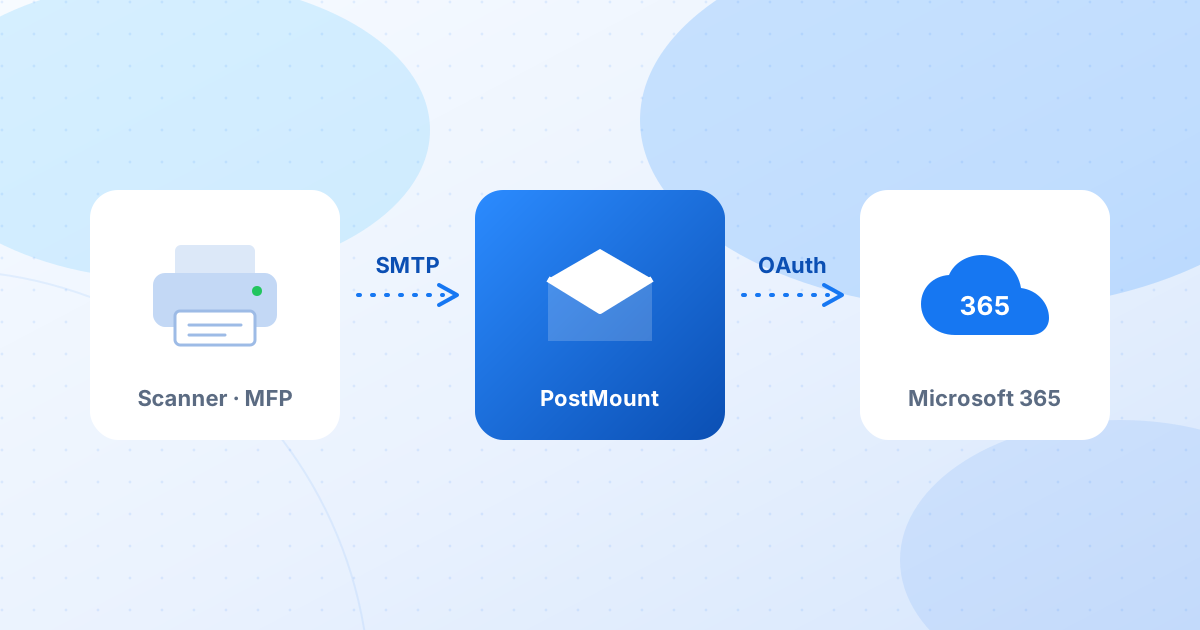
Works for every deviceThe device keeps speaking plain SMTP — but to a computer on your own network. That computer signs in to Microsoft 365 with OAuth and sends the message through Microsoft Graph. This is what PostMount’s mail gateway does.
- Any recipients, internal and external; no static IP, no connector, no port 25 to the internet.
- No Microsoft 365 password on the device; MFA and Conditional Access stay on.
- Only the IP addresses you allow can send — no open relay.
- Needs a Windows PC or server that is always on, and a PostMount Standard or Pro plan.
Compared
| External recipients | Static IP | Password on device | Old devices | |
|---|---|---|---|---|
| OAuth in firmware | Yes | No | No | Rarely |
| Direct Send | No | Recommended | No | Yes |
| Connector relay | Yes | Required | No | Yes |
| Re-enable SMTP AUTH | Yes | No | Yes | Until removal |
| Local relay (PostMount) | Yes | No | No | Yes |
Setting it up with PostMount
- Install PostMount from Microsoft Store on a PC or server that stays on.
- Sign in with your Microsoft 365 account. The first sign-in needs one-time approval from your tenant administrator.
- Choose the sender. Your own mailbox — or, better, a shared mailbox such as
scan@yourdomain.com: shared mailboxes up to 50 GB need no license. - Turn on the mail gateway and add the IP addresses of your scanners to the allowed list.
- Point the device at PostMount:
| SMTP server | The IP address of the PostMount computer, e.g. 192.168.1.10 |
|---|---|
| Port | 25, 587 or 2525 |
| Encryption | None — traffic stays on your local network |
| Authentication | Off — no user name or password |
| Sender address | The mailbox you chose, e.g. scan@yourdomain.com |
Send a test scan. In PostMount’s gateway list you’ll see the device by name and IP, when it last sent, and any errors. If Microsoft 365 is briefly unavailable, messages wait in a queue and go out by themselves.
Sources
- Microsoft Exchange Team — Exchange Online to retire Basic auth for Client Submission (SMTP AUTH).
- Office 365 for IT Pros — SMTP AUTH Client Submission retirement delayed (updated timeline).
- Microsoft Learn — How to set up a multifunction device or application to send email using Microsoft 365.
- Office 365 for IT Pros — Reject Direct Send in Exchange Online.
- Microsoft Q&A — “535 5.7.139 Authentication unsuccessful, basic authentication is disabled” on a printer.